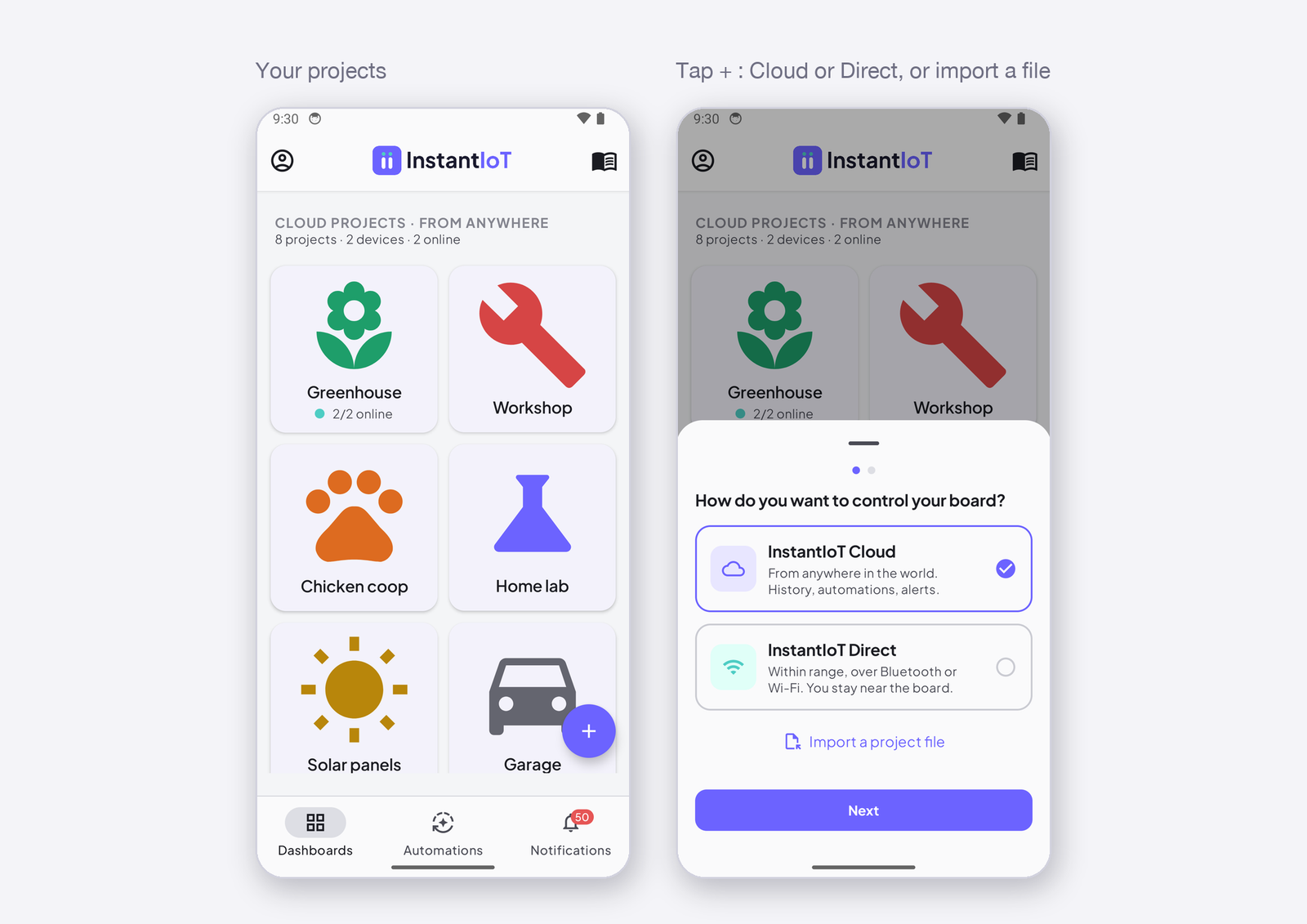
Before a device can talk to your dashboard, the app has to know it — that is registering — and has to know what values it will send and receive — those are its signals. This page does both, from the device icon at the top right of a dashboard, and ends with the sketch the app writes for you.
Register a device (Cloud)
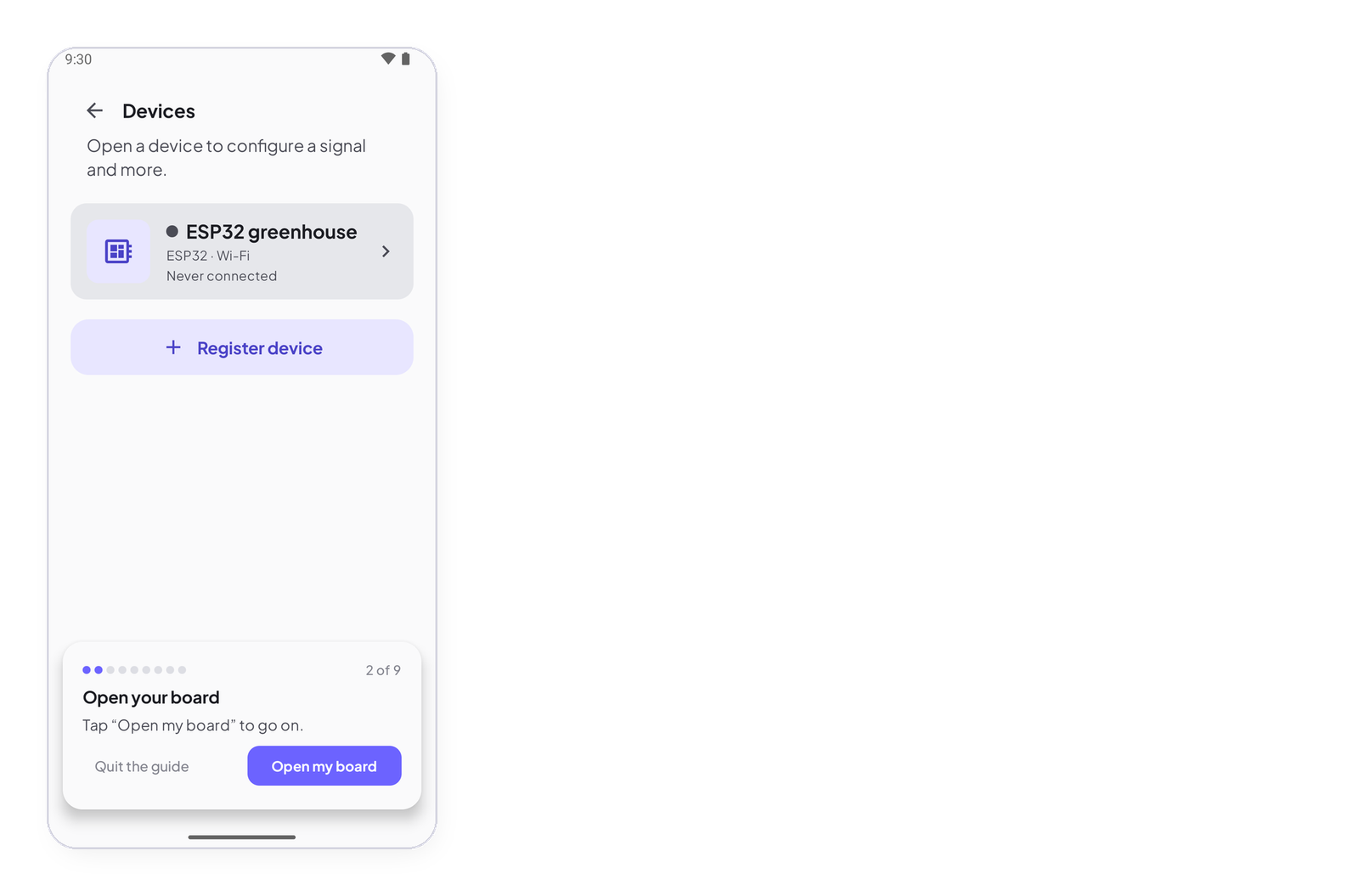
Tap the device icon at the top right of the dashboard, then Register device. Give the device a name, choose its type — ESP32, ESP8266, Arduino UNO R4 WiFi — and how it connects, then tap Register. The app shows the device’s token once: tap Copy token and keep it — it goes into the sketch in place of PASTE_TOKEN_HERE, and the app will never show it again. The device appears grey in the list until the sketch runs on it; then its dot turns green, Online.
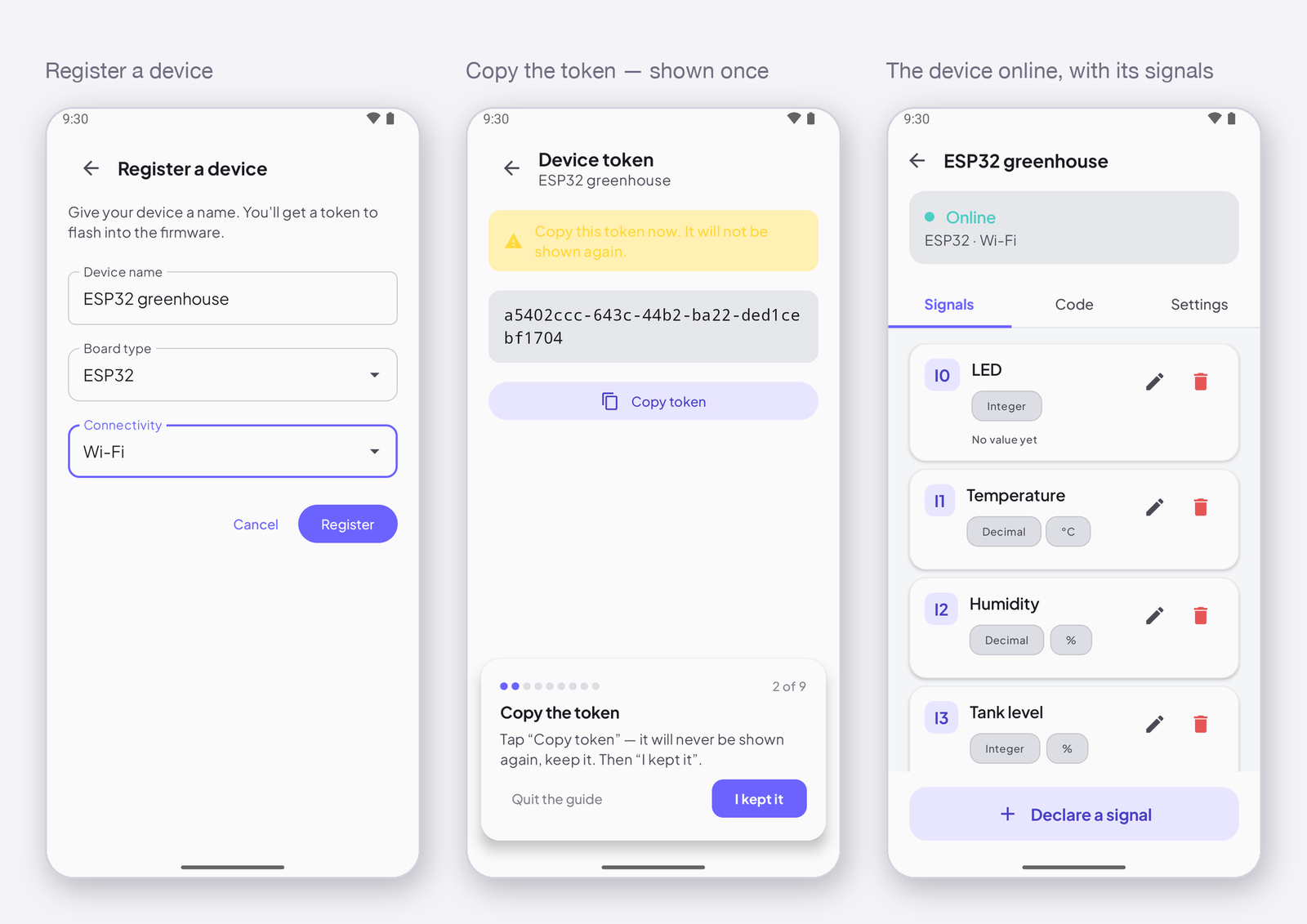
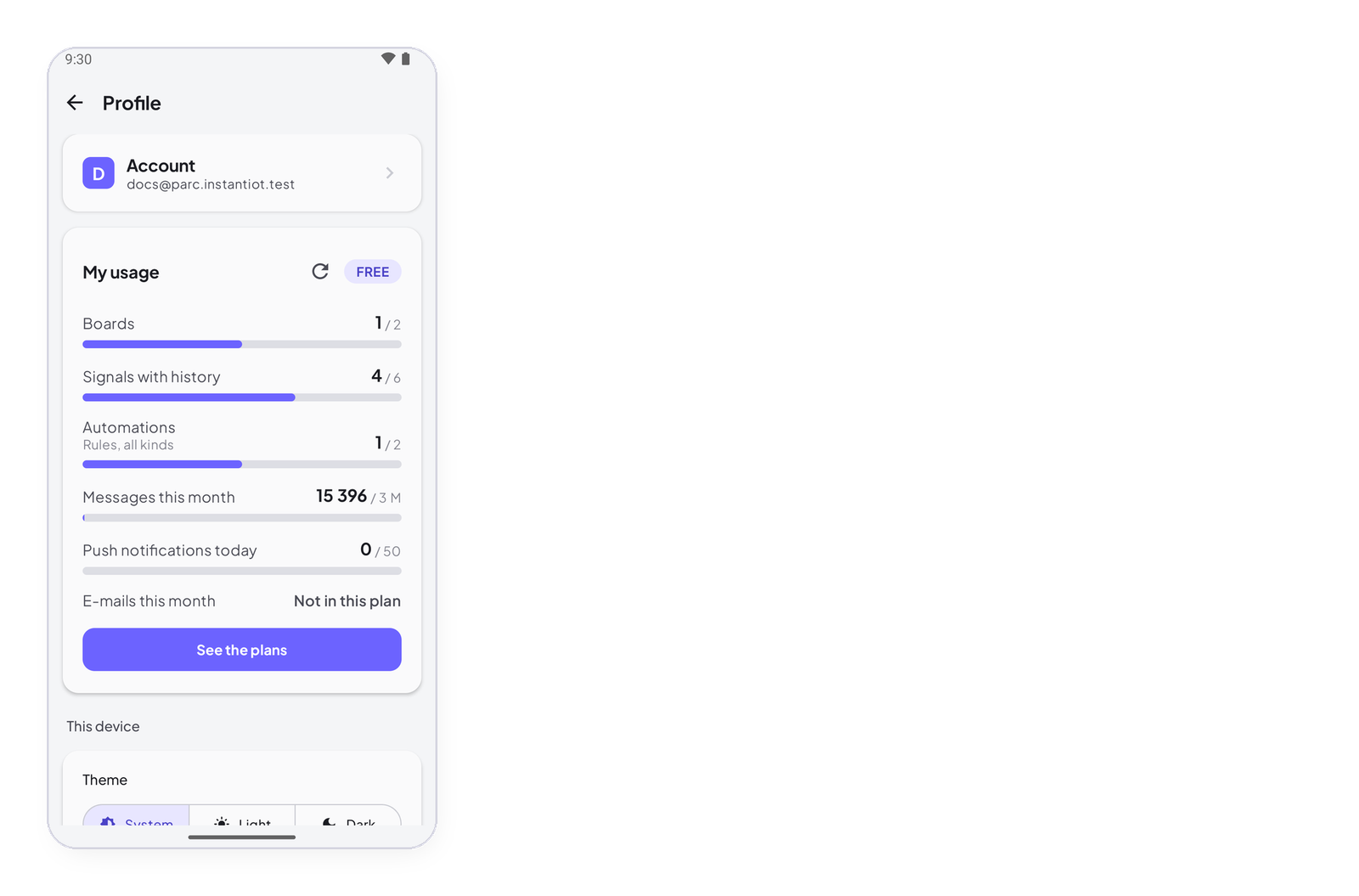
A Free account can register 2 devices, a Maker account 25 — Your account, your plan and your usage.
In a Direct project there is nothing to register: the device you chose when you created the project is already there, and there is no token — the phone is at the other end of the wire.
Declare a signal
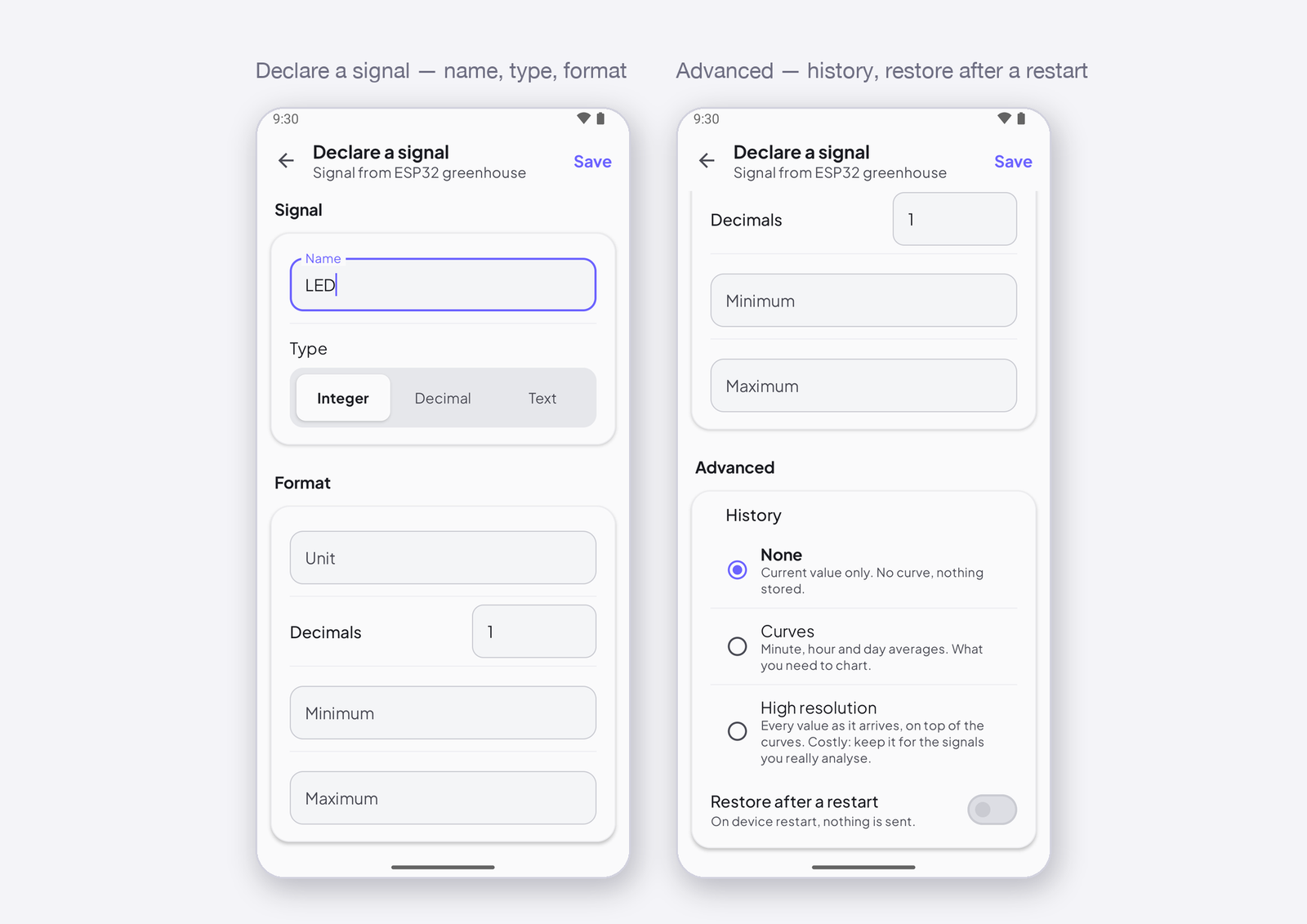
Open the device and tap Declare a signal. Give it a name (Temperature), a type — Integer, Decimal or Text — and, under Format, the unit, the decimals, the minimum and the maximum: every widget on this signal will use them. Under Advanced, choose a history — none, curves, or high resolution — and whether the last value should be restored after a restart of the device. Save: the app gives the signal the next free address, I0, I1… What each field means, in detail: Signals: types, format and history.
Get the sketch
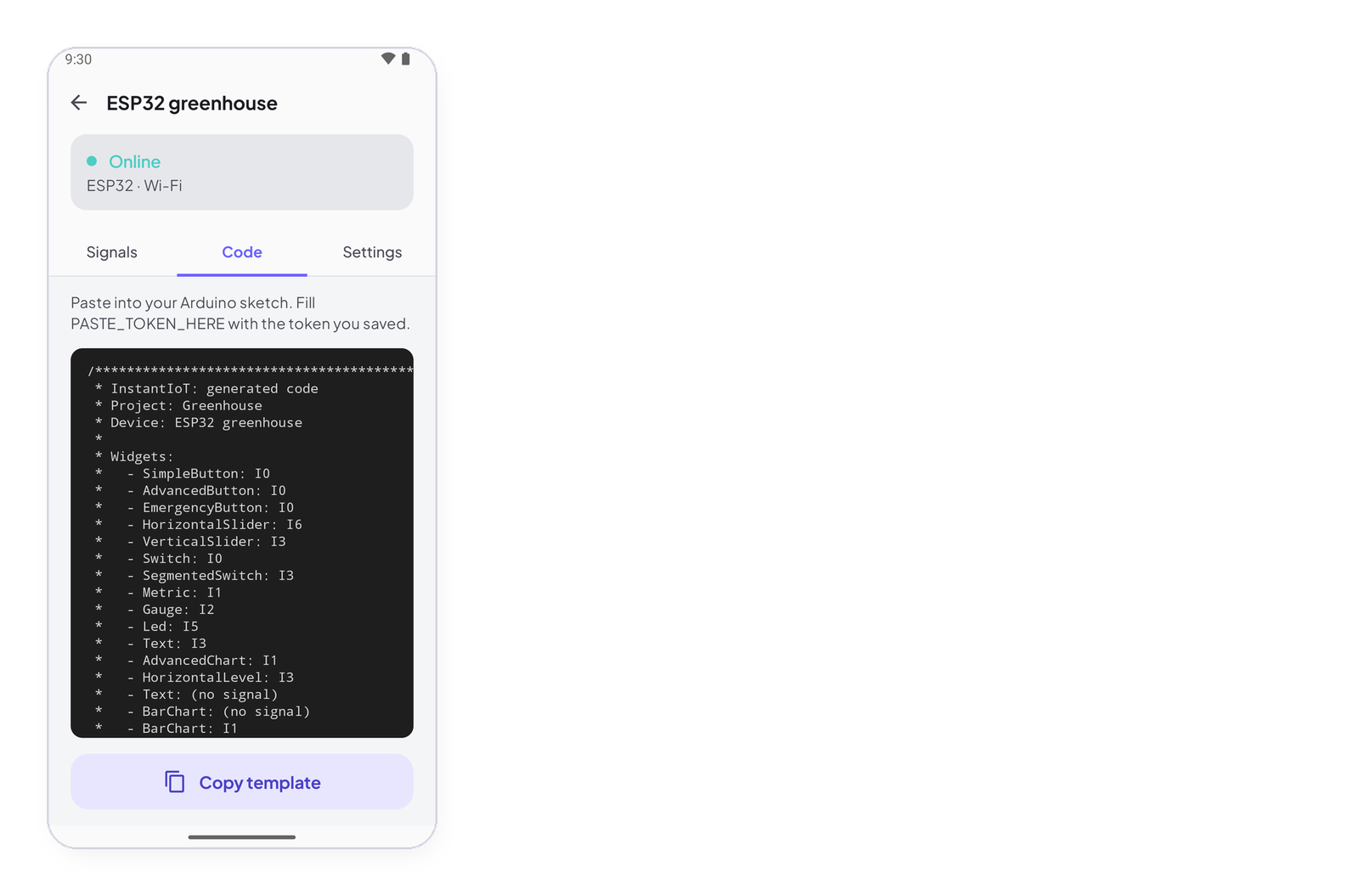
The device’s Code tab holds a sketch the app writes for you: it already contains every widget of the project with its address, the connection line for your project, and the token placeholder. Copy template puts it in your clipboard; paste it into the Arduino IDE, add what your sensors and actuators do, and upload. It is a starting point, not a cage: rewrite it as you like, the addresses are all that matter.
Rename, renew the token, remove
The device’s Settings tab lets you rename it, renew the token — the old one stops working, the device must be reflashed with the new one — and delete the device, which also deletes its signals and their history.