A project is one dashboard, its devices and its signals. This page covers its whole life: creating it, renaming it, giving it an icon, duplicating it, exporting it to a file to bring it back on another phone — and what deleting it really deletes.
Create a project
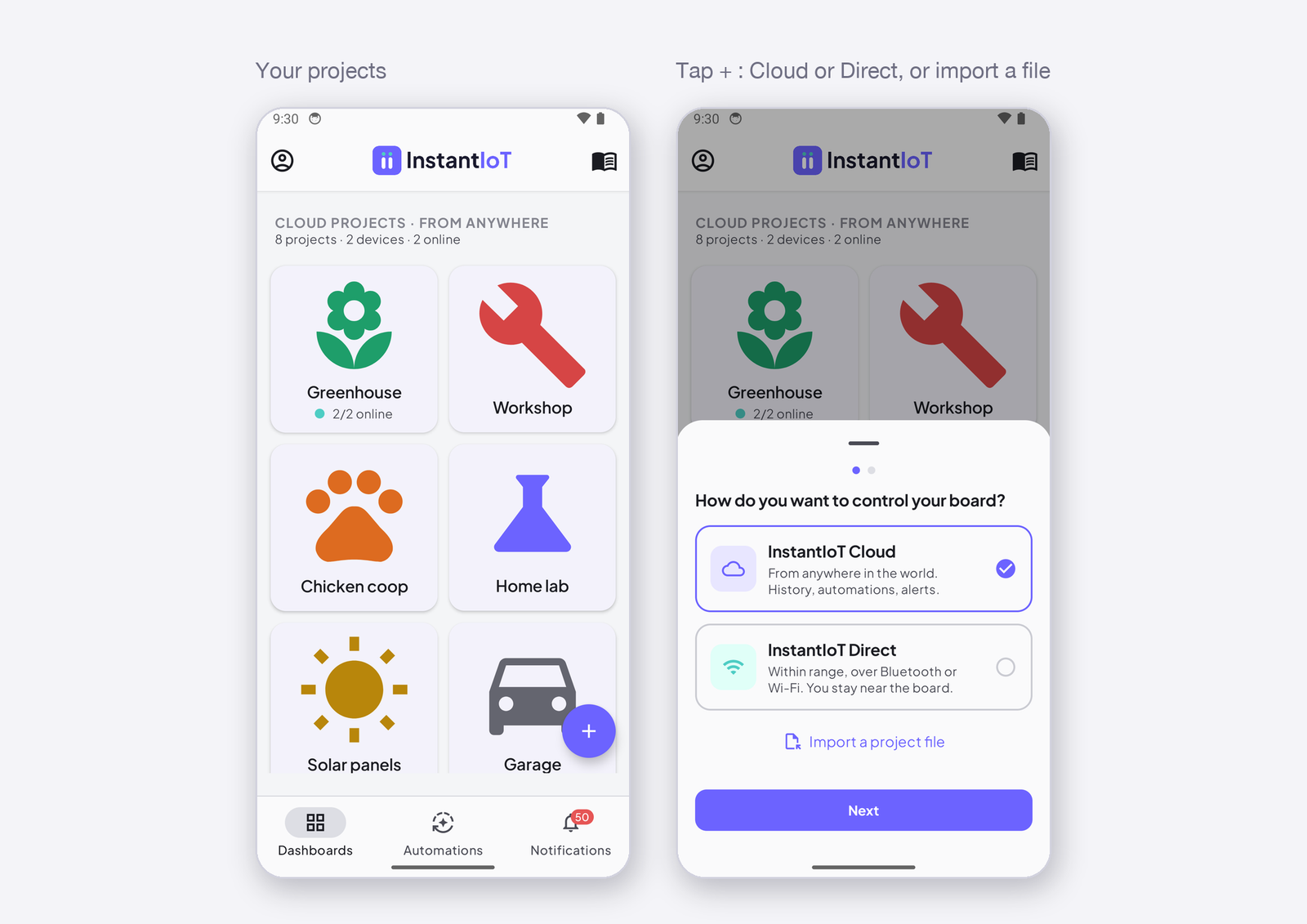
Tap + on the home screen. The app asks How do you want to control your device? — From anywhere in the world for a Cloud project, Within range, over Bluetooth or Wi-Fi for a Direct one (Cloud or Direct). Give it a name. A Cloud project asks for your account if you have none yet; a Direct project asks which device you have — thirteen boards, from the ESP32 to an UNO behind a Bluetooth module — and how the phone reaches it: Wi-Fi, Bluetooth LE, Bluetooth Classic or a Bluetooth module, among what that board can do (Supported boards). Both change later on the device sheet, Settings tab. The dashboard opens, empty, in edit mode.
Rename, icon, duplicate, export, delete
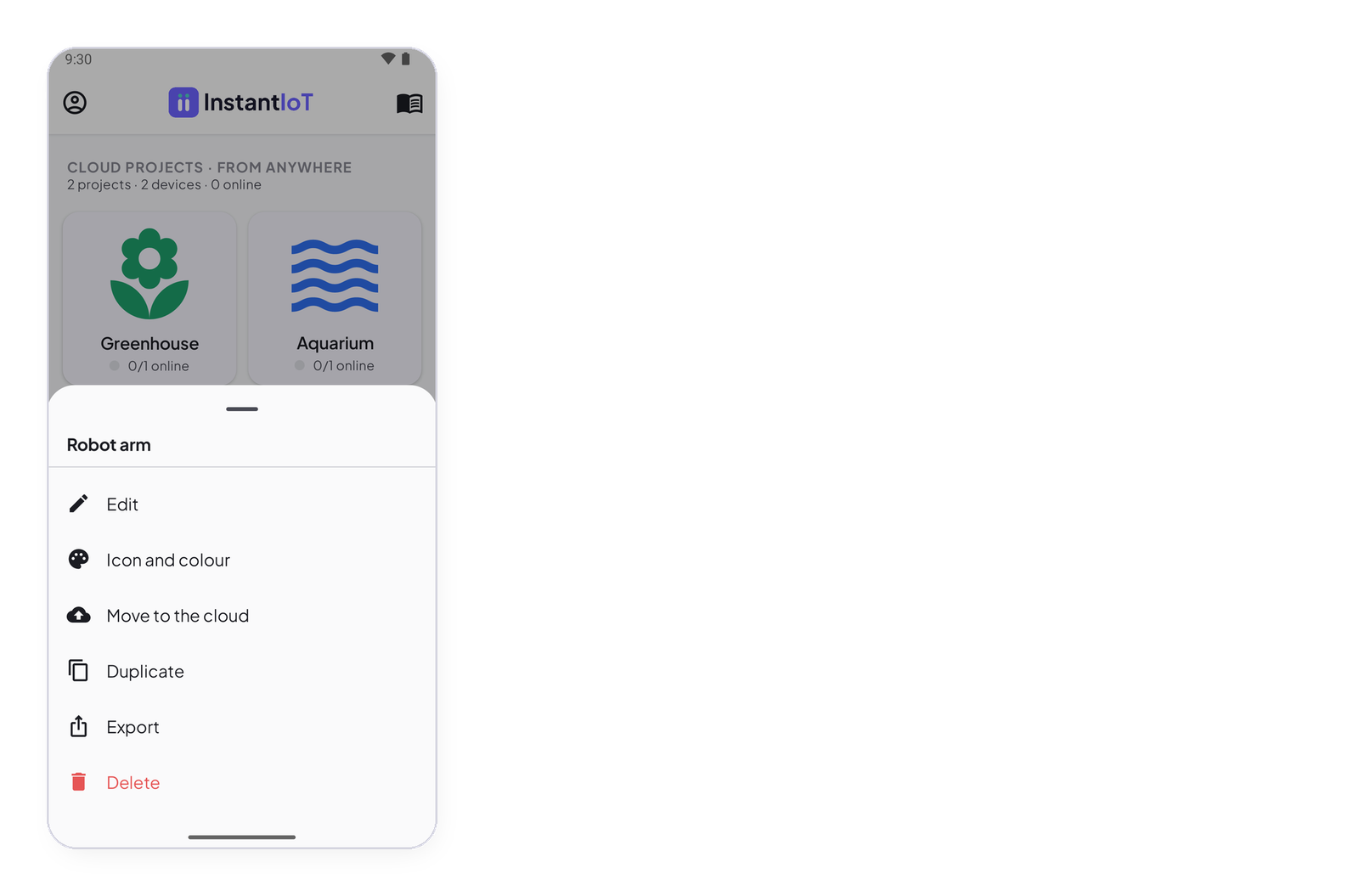
Long-press the project on the home screen: Edit renames it, Icon and colour changes how it looks in the list, Duplicate makes a copy with the same widgets, Move to the cloud (a Direct project) copies it to your account with its device and signals, Export writes it to a file, Delete removes it.
Export and import
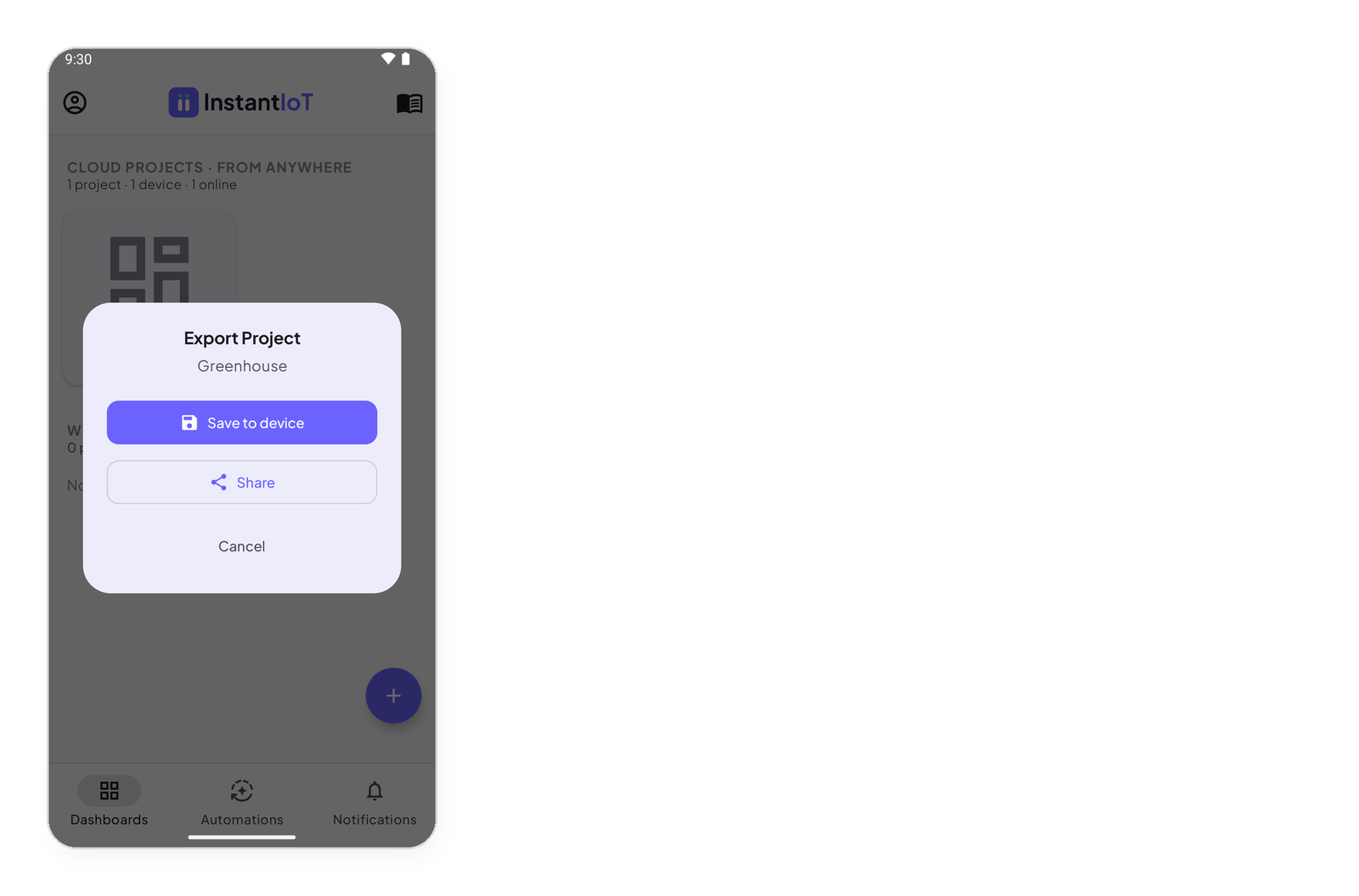
Export writes a project file that contains the dashboard, the devices, the signals and the rules — no token, no history. Save to device keeps it on the phone; Share sends it by any app. To bring it back on another phone or into another account: + on the home screen, then Import a project file.
An imported Cloud project has its devices but not their tokens: open each device and Renew token, then paste the new token in the sketch.
Delete
Deleting a Cloud project deletes its devices and their history on the server. The tokens stop working: a device still running the old sketch is refused. Export first if you might want it back.