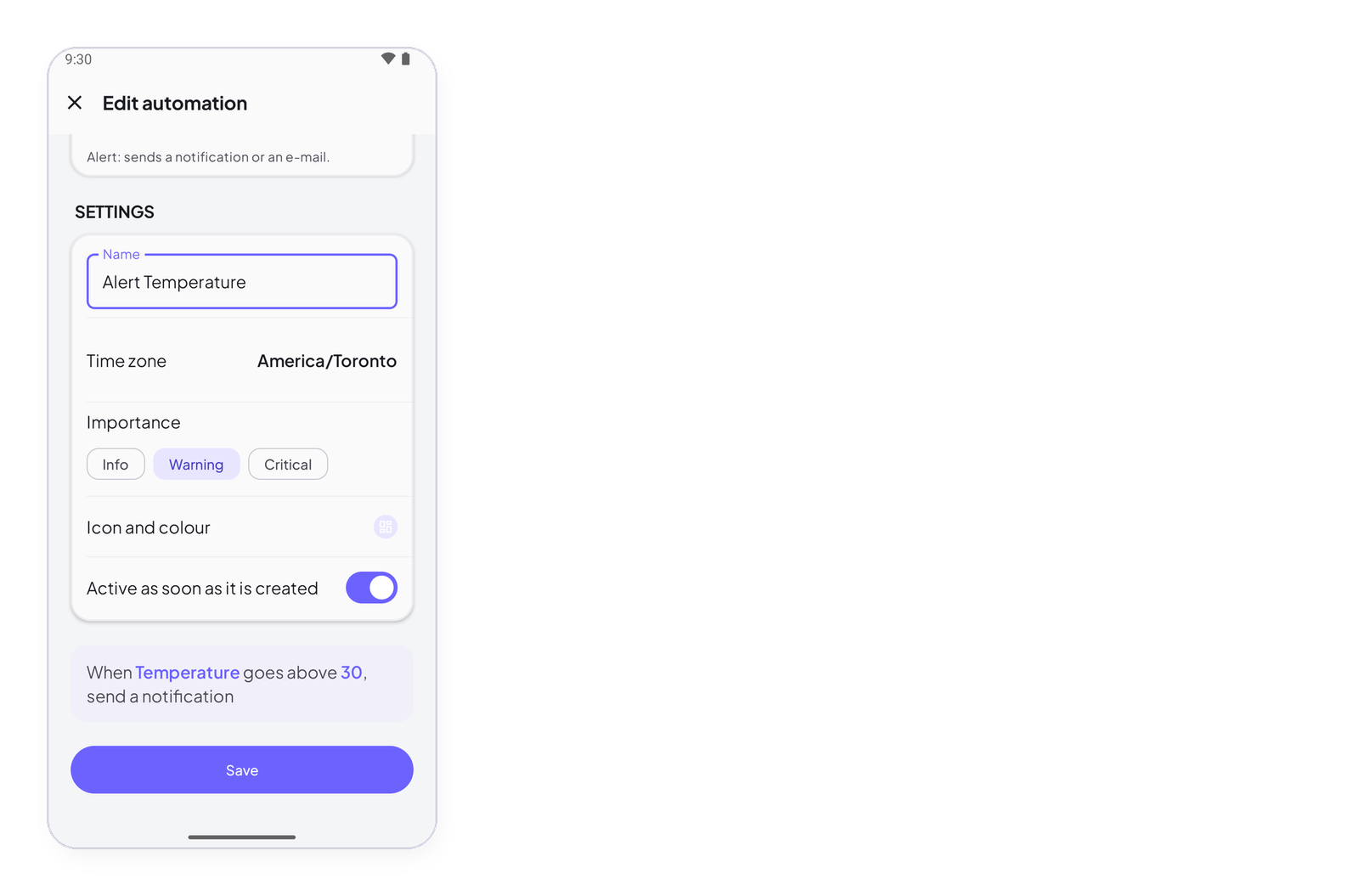
Under the three blocks of a rule, the Settings block holds what the rule is called, in which time zone it reads the clock, how important it is, and whether it runs. This page explains each one — the importance is the one that decides where a notification lands.
| Setting | What it does |
|---|---|
| Name | The rule’s name in the list, on the rule’s page, and in the notification’s title bar. The editor proposes one from the trigger — Alert Temperature — and stops touching it once you have typed yours. |
| Time zone | Every time in the rule — at 07:00, between 22:00 and 06:00 — is read in this zone, not your phone’s. The app proposes your phone’s zone and shows it. |
| Importance | Info, Warning or Critical. It colours the rule and its notifications, and puts them in the matching tab of the Notifications screen. Critical for what must be seen; Info for what can wait. |
| Icon and colour | How the rule looks in the list. |
| Active as soon as it is created | On: the rule runs from the moment you save it. Off: it is saved but sleeping, and the switch in the list turns it on when you are ready. |
The bottom of the editor reads the whole rule back as a sentence — When Temperature goes above 30, send a notification — before you tap Save.
Next
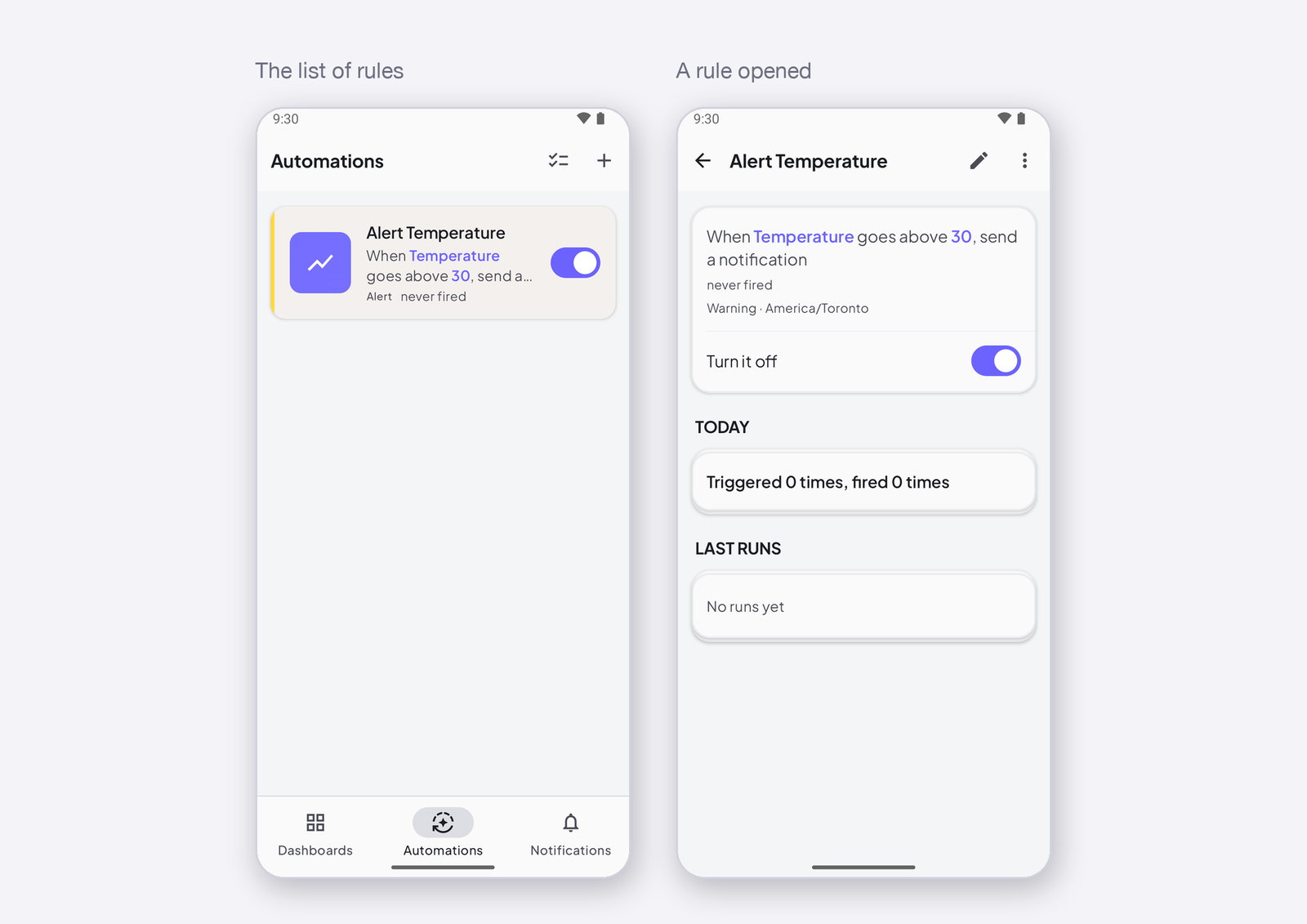
→ Manage your automations — the list, the switch, when it last fired. → The Notifications screen — where importance shows.
Was this page helpful?
Great! What worked best for you?
Please
provide
additional details about your experience.
✓ Thank you for your feedback! We appreciate your input.