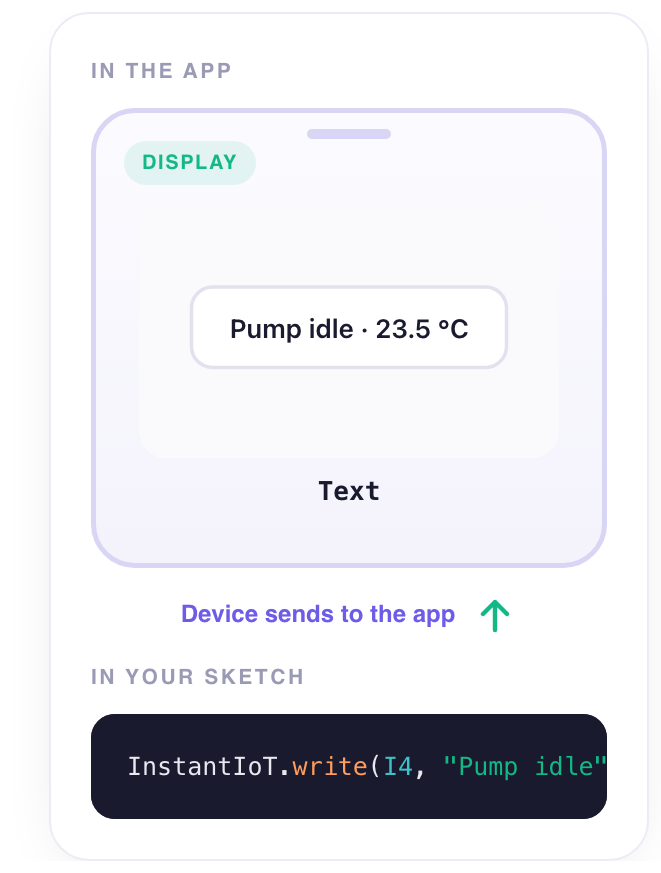
A line of text from the device. A status — Pump idle — a mode, an error message, anything the device wants to say in words rather than numbers.
What it does
It shows the latest value of a Text signal, as the device writes it — up to 48 characters. A number works too: the value is shown as text.
When to use it
- A status line — Heating, Door open, Waiting for water.
- An error the user should read — Sensor not found.
- A small log — the last thing that happened.
Set it up
- Declare the signal — Tap the device icon at the top right, then Declare a signal: give it a name, a type and a unit, and fill in the Format — minimum, maximum, decimals — because that is what the widget will use to scale and print the value.
- Place it — Back on the dashboard, in edit mode, tap + at the bottom and choose Text under Displays. Eight columns wide and two rows tall gives a line of text room.
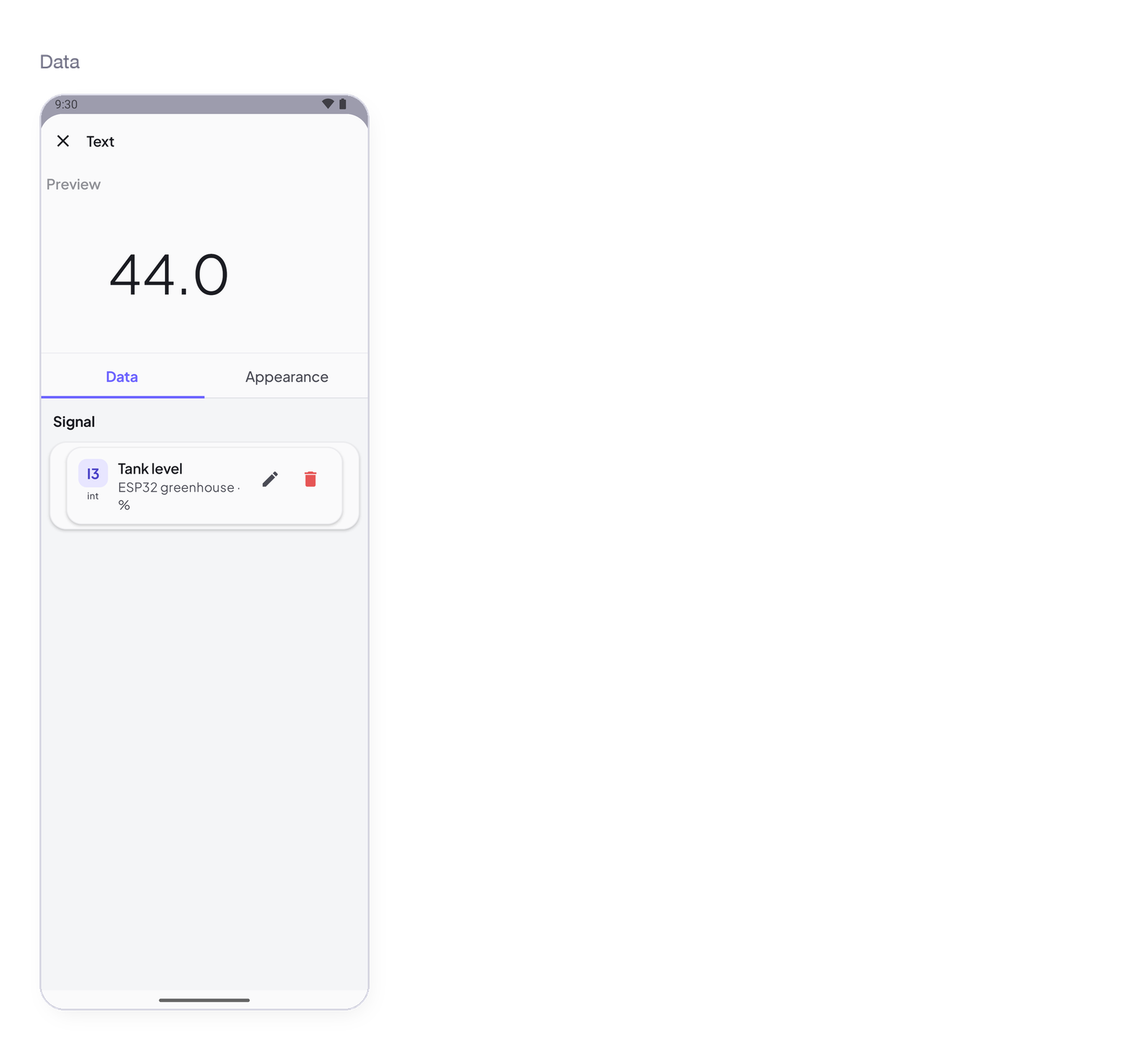
- Wire it to the signal — Tap the widget: its settings open. In the Data tab, tap Pick a signal and choose the signal you declared.
- Write from the device — In the sketch, write the value to the signal’s address —
InstantIoT.write(I1, value)— and it shows up in the widget within a second.
Settings
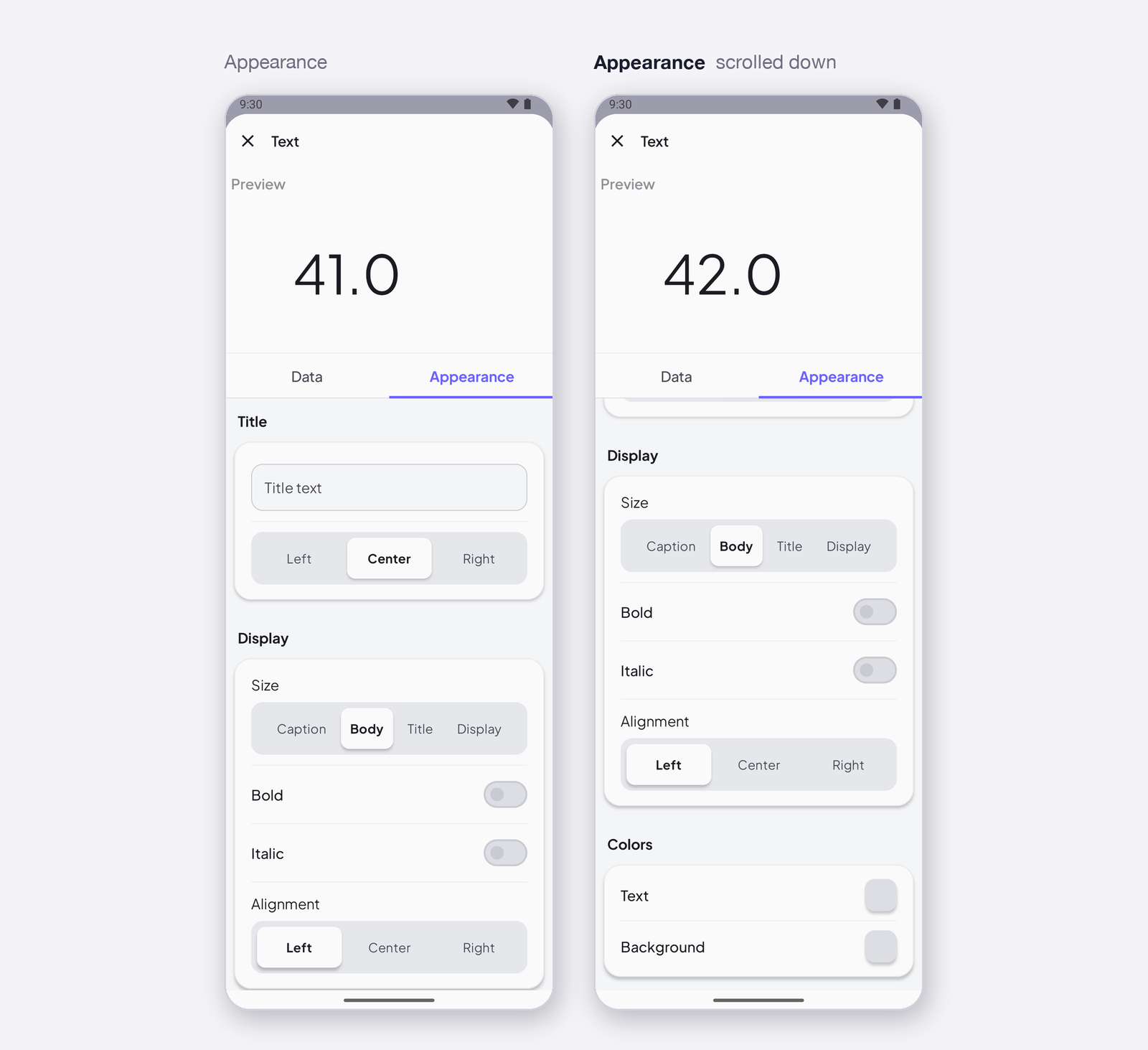
Tap the widget in edit mode: the sheet opens with a live preview at the top, then two tabs — Data for what it reads or writes, Appearance for how it looks.
Data — what it reads
Signal
| Setting | Type | Default | What it controls |
|---|---|---|---|
| Signal | one signal | empty — Pick a signal | The signal the widget reads. Accepts a Text signal, or a number — an Integer or Decimal signal is shown as text. The picker lists nothing else. |
Appearance — how it looks
Title
| Setting | Type | Default | What it controls |
|---|---|---|---|
| Title text | text | empty | A title above the widget. Empty means no title. |
| Alignment | Left / Center / Right | Center | Where the title sits. |
Display
| Setting | Type | Default | What it controls |
|---|---|---|---|
| Size | Caption / Body / Title / Display | Body | The type size. |
| Bold | toggle | off | |
| Italic | toggle | off | |
| Alignment | Left / Center / Right | Left | Where the text sits in the widget. |
Colors
| Setting | Type | Default | What it controls |
|---|---|---|---|
| Text | colour | theme | |
| Background | colour | theme |
States
- Waiting for data — nothing has arrived yet on this signal; the widget shows a placeholder.
- Live — every value the device writes replaces the previous one.
- Device offline — the last value stays on screen; the device’s dot is grey in the device list.
Arduino device code
The address is all the device knows — I4 here; use the one the app gave your signal. In the sketch, a text, 48 characters at most:
InstantIoT.write(I4, "Pump idle");
Complete sketch — Cloud
Paste it into the Arduino IDE, put your Wi-Fi and the token the app gave you, upload. It publishes once a second.
#include <InstantIoT.h>

const char* WIFI_SSID    = "MyWiFi";
const char* WIFI_PASS    = "MyPassword";
const char* DEVICE_TOKEN = "PASTE_TOKEN_HERE";

InstantTimer timers;

void publish() {
    InstantIoT.write(I4, pumpRunning ? "Pump running" : "Pump idle");   // a Text signal
}

void setup() {
    InstantIoT.begin(WiFiLink(WIFI_SSID, WIFI_PASS), Cloud(DEVICE_TOKEN));
    timers.every(1000, publish);
}

void loop() {
    InstantIoT.loop();
    timers.run();
}
Other connections
The widget block never changes. Only the begin() line says how the device reaches the app:
| Connection | begin() |
Devices |
|---|---|---|
| Cloud over Wi-Fi (above) | InstantIoT.begin(WiFiLink("MyWiFi", "secret"), Cloud(DEVICE_TOKEN)); |
ESP32 family, ESP8266, UNO R4 WiFi, MKR WiFi 1010, Nano 33 IoT, UNO WiFi Rev2 |
| Cloud over Ethernet | InstantIoT.begin(EthernetLink(), Cloud(DEVICE_TOKEN)); |
any board + an Ethernet shield |
| Direct — the device’s own Wi-Fi | InstantIoT.begin(AccessPoint("MyESP32", "12345678")); |
every board with Wi-Fi |
| Direct — Bluetooth LE | InstantIoT.begin(BLELink("MyESP32")); — #include <NimBLEDevice.h> first |
ESP32 family (not the S2) |
| Direct — Bluetooth Classic | InstantIoT.begin(BluetoothLink("MyESP32")); |
the original ESP32, Android only |
| Direct — a Bluetooth module (HC-05, HM-10) | InstantIoT.begin(SerialLink(Serial1)); — or SerialLink(13, 15) on ESP8266, SerialLink(10, 11) on UNO / Nano |
every board, radio or not |
| Your own InstantIoT Server (open source, at home) | InstantIoT.begin(WiFiLink("MyWiFi", "secret"), MyServer("192.168.1.42", DEVICE_TOKEN)); |
same as Cloud |
Direct needs no token: the phone is at the other end of the wire. See Connect for TLS, timeouts and what to do when it does not connect.
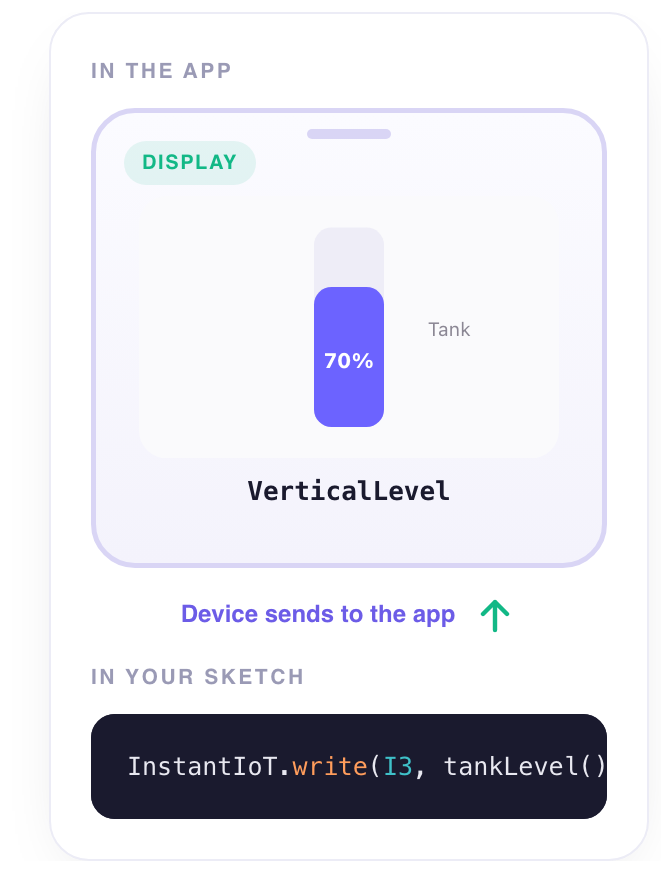
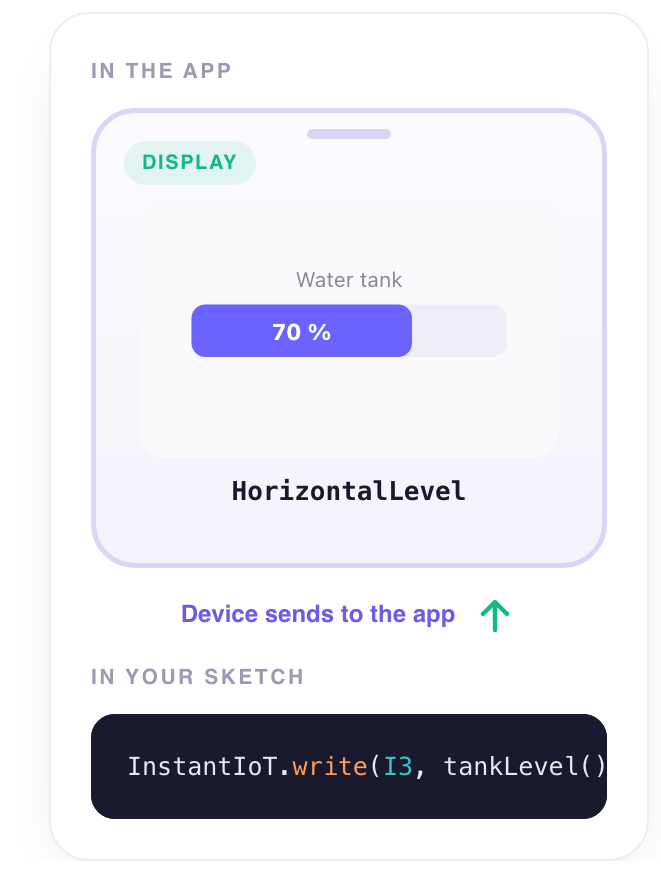
Any display works at the same address. A metric, a gauge and this widget on the same signal show the same value; the device does not change. Change the widget, not the sketch.
Notes
- 48 characters, then it is cut. Say it short.
- Write only when the text changes: a status rewritten every second costs messages for nothing — compare with the previous value before
write(). snprintflets you show22.4 °C · 58 %in one widget.