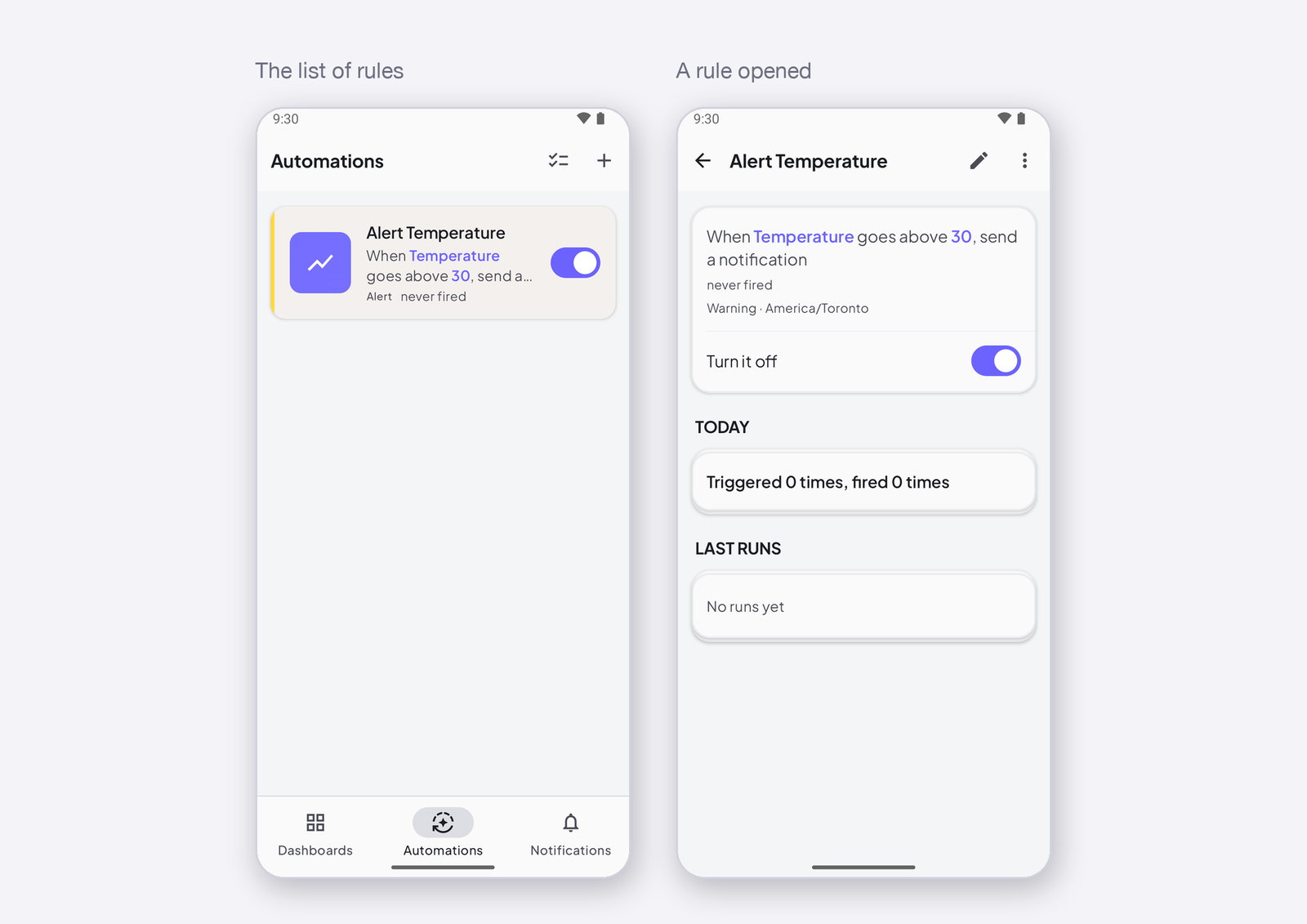
The fastest way to write a rule is to start from one of the three templates: they pre-fill the sentence, and you only choose the signal and the number. This page shows the three templates, what each one writes for you, and how to start from a blank rule instead.
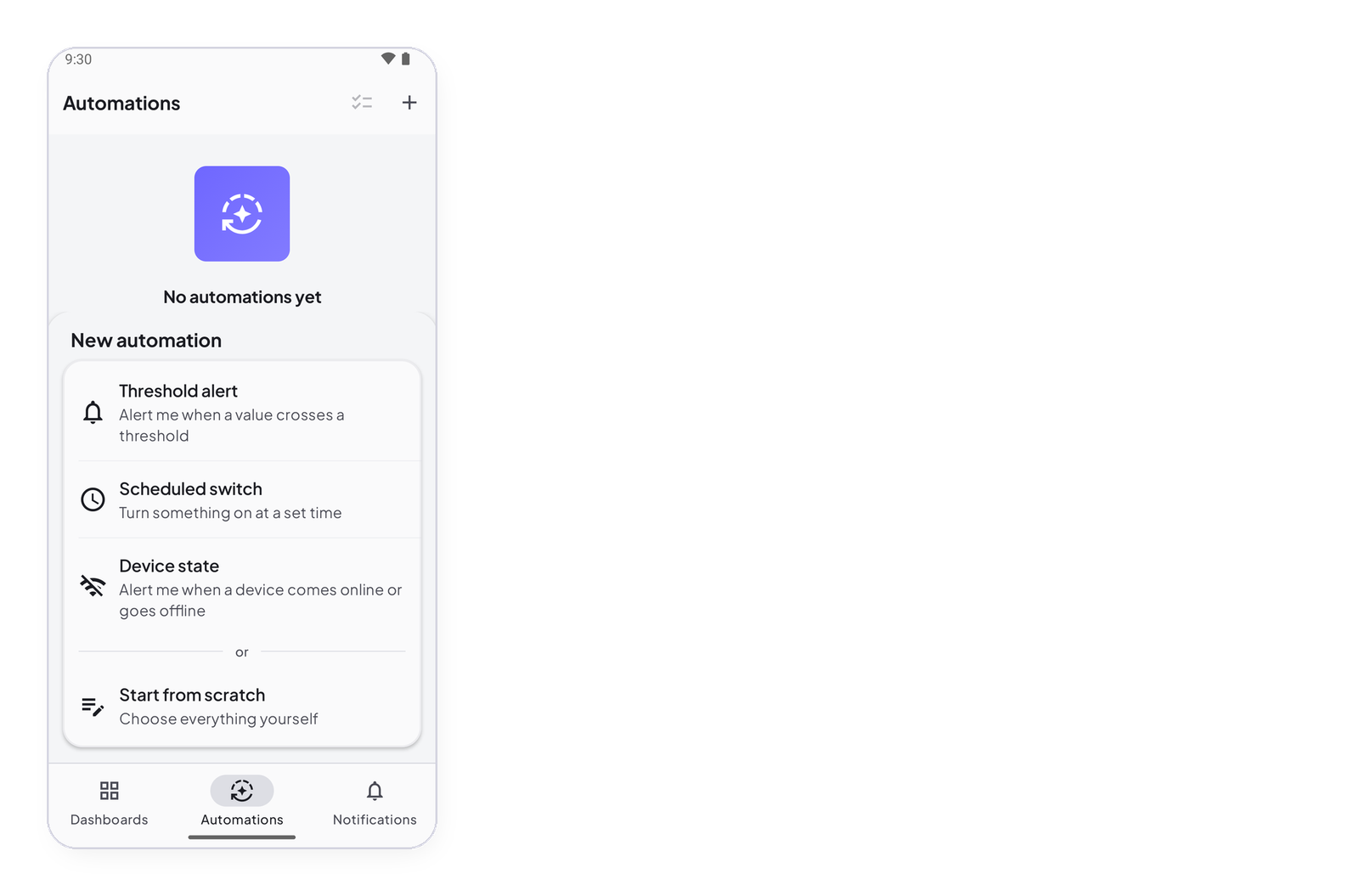
The three templates
Open the Automations tab and tap +:
| Template | What it writes | Change |
|---|---|---|
| Threshold alert — Alert me when a value crosses a threshold | WHEN a signal goes above a value → THEN send a notification | the signal, the operator, the number, the message |
| Scheduled switch — Turn something on at a set time | WHEN at a set time → THEN set a signal to a value | the time, the days, the signal, the value |
| Device state — Alert me when a device comes online or goes offline | WHEN a device goes offline, after a wait → THEN send a notification | the device, online or offline, the wait, the message |
A template only pre-fills. Every block can be changed afterwards, exactly as in a rule started from scratch.
Start from scratch
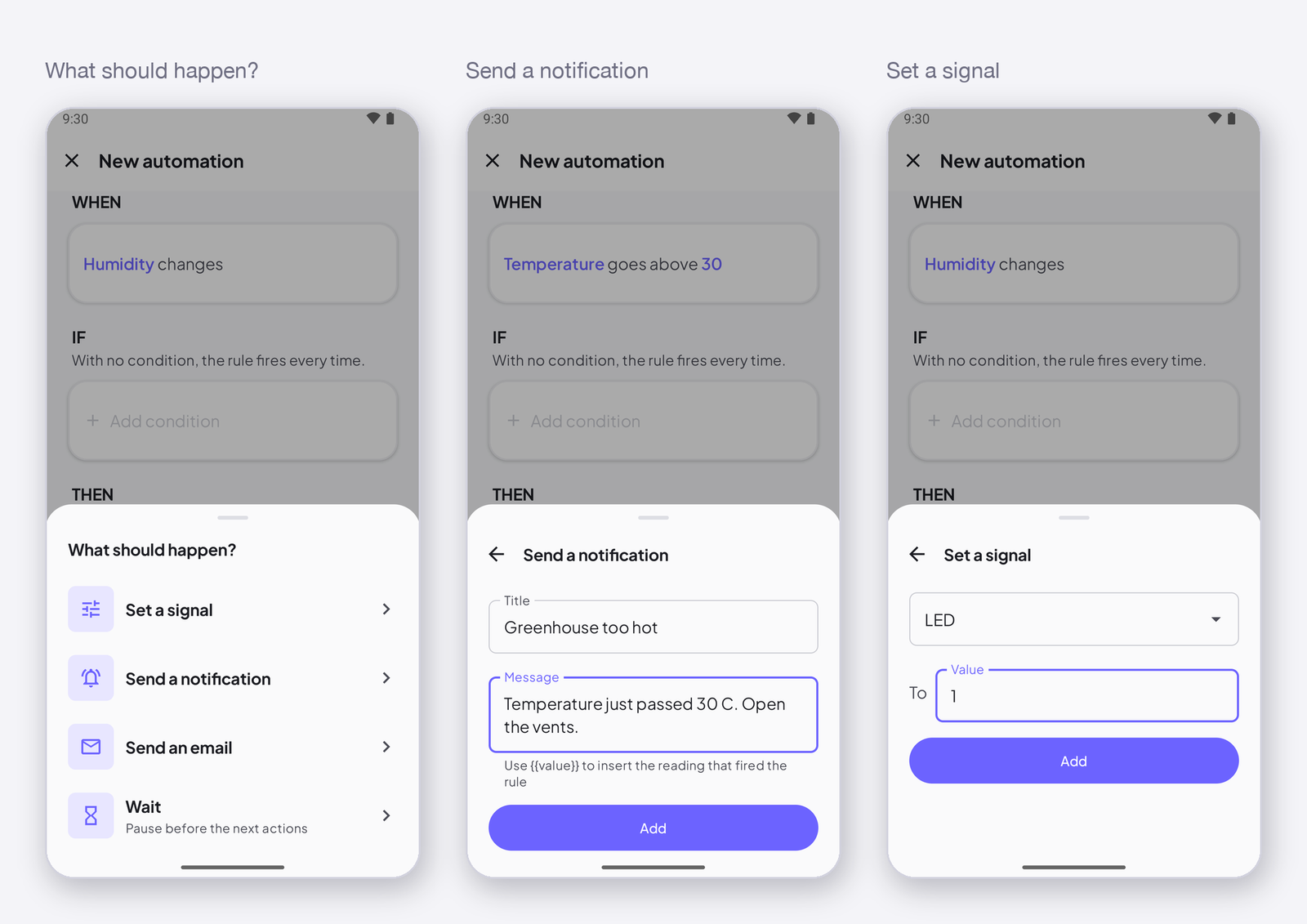
Start from scratch opens an empty editor: Choose what starts it under WHEN, Add condition under IF, Add action under THEN. The bottom of the editor reads the rule back as a sentence as you build it.
Then
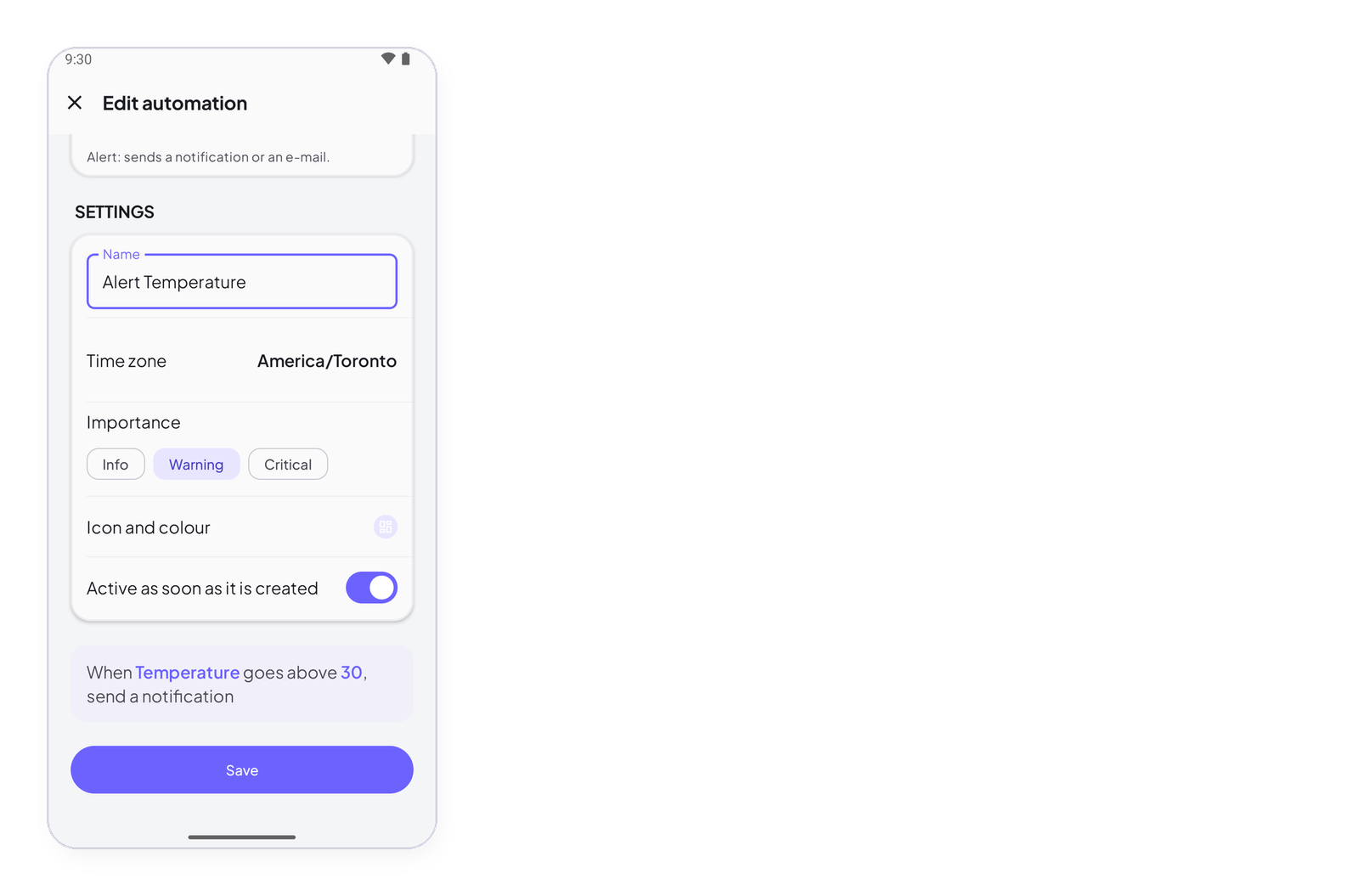
Give the rule a name under Settings, check the time zone, tap Save. The rule is active as soon as it is created unless you turn that off — Rule settings. The worked example, from template to notification: Get notified when a value crosses a threshold.