A push notification is the one your phone shows in its own notification shade — with a sound, on the lock screen — like a message. It reaches every phone signed in to your account, app open or closed. This page says what to allow for it to arrive, what it contains, and what to check when it does not come.
Allow them
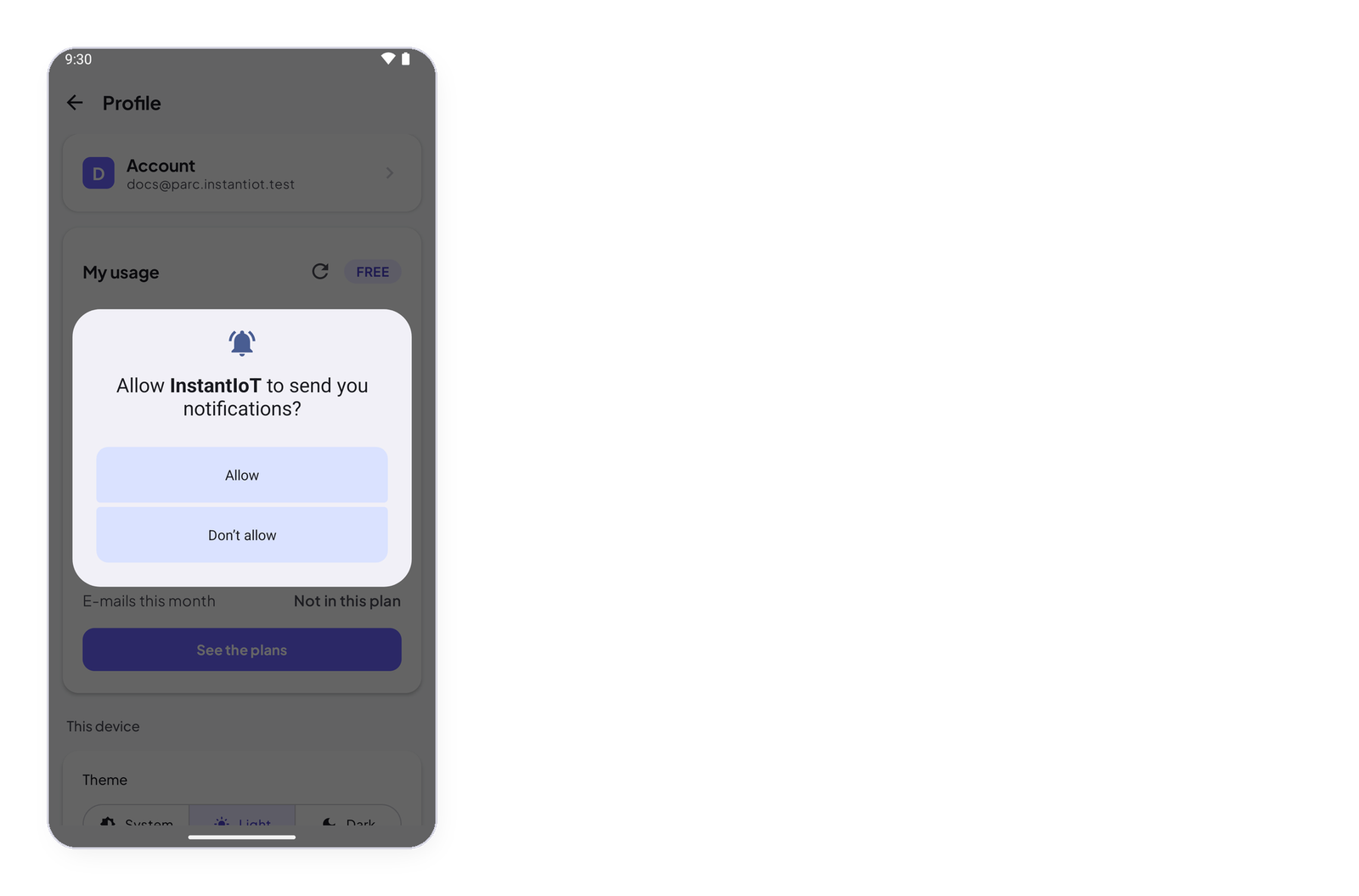
The first time the app signs you in, the phone asks Allow InstantIoT to send you notifications? — tap Allow. If you said no: open the phone’s settings, find InstantIoT under Apps, and allow notifications. Then open the app once, signed in: that is when it registers this phone with the Cloud.
What arrives
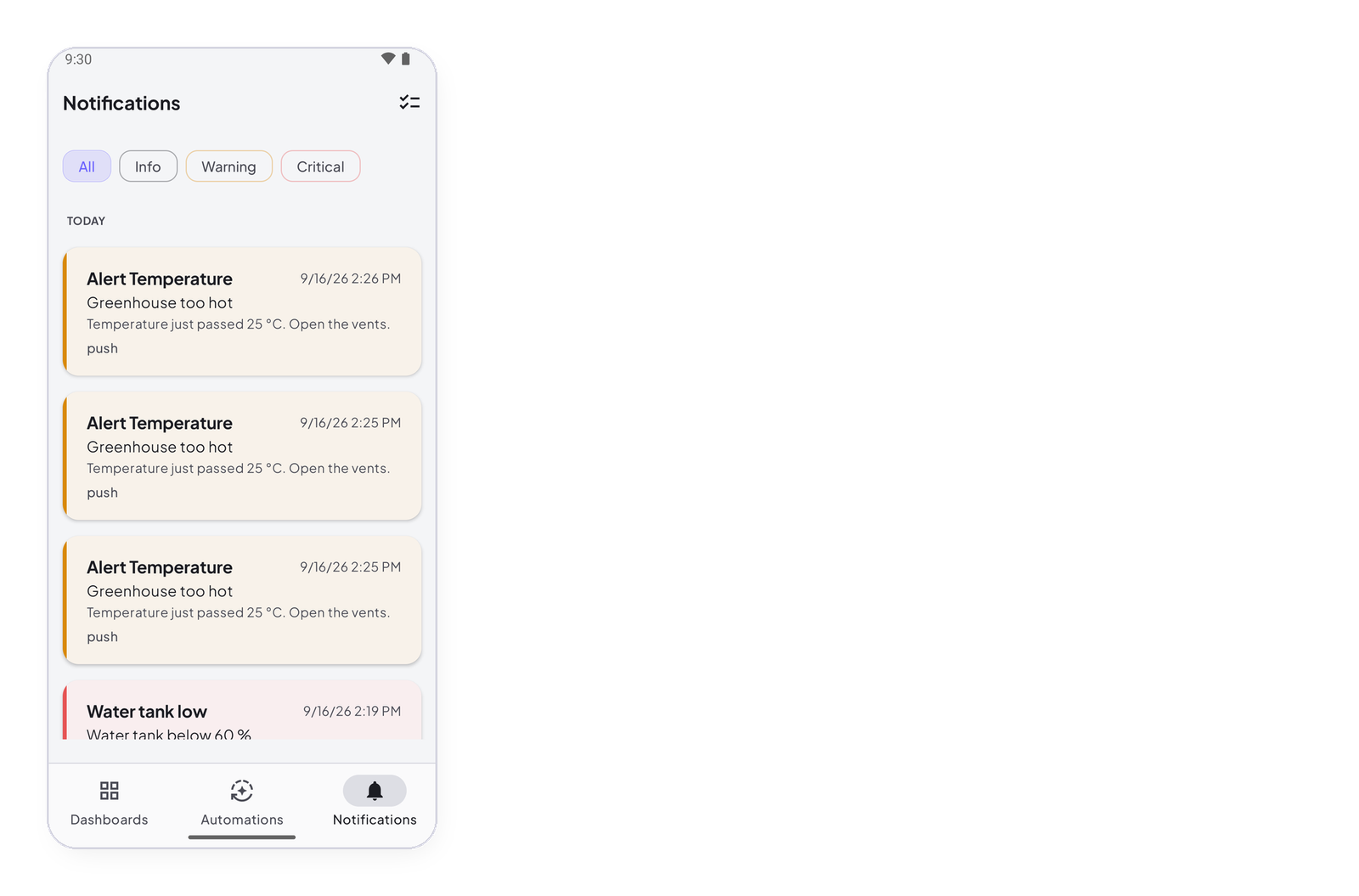
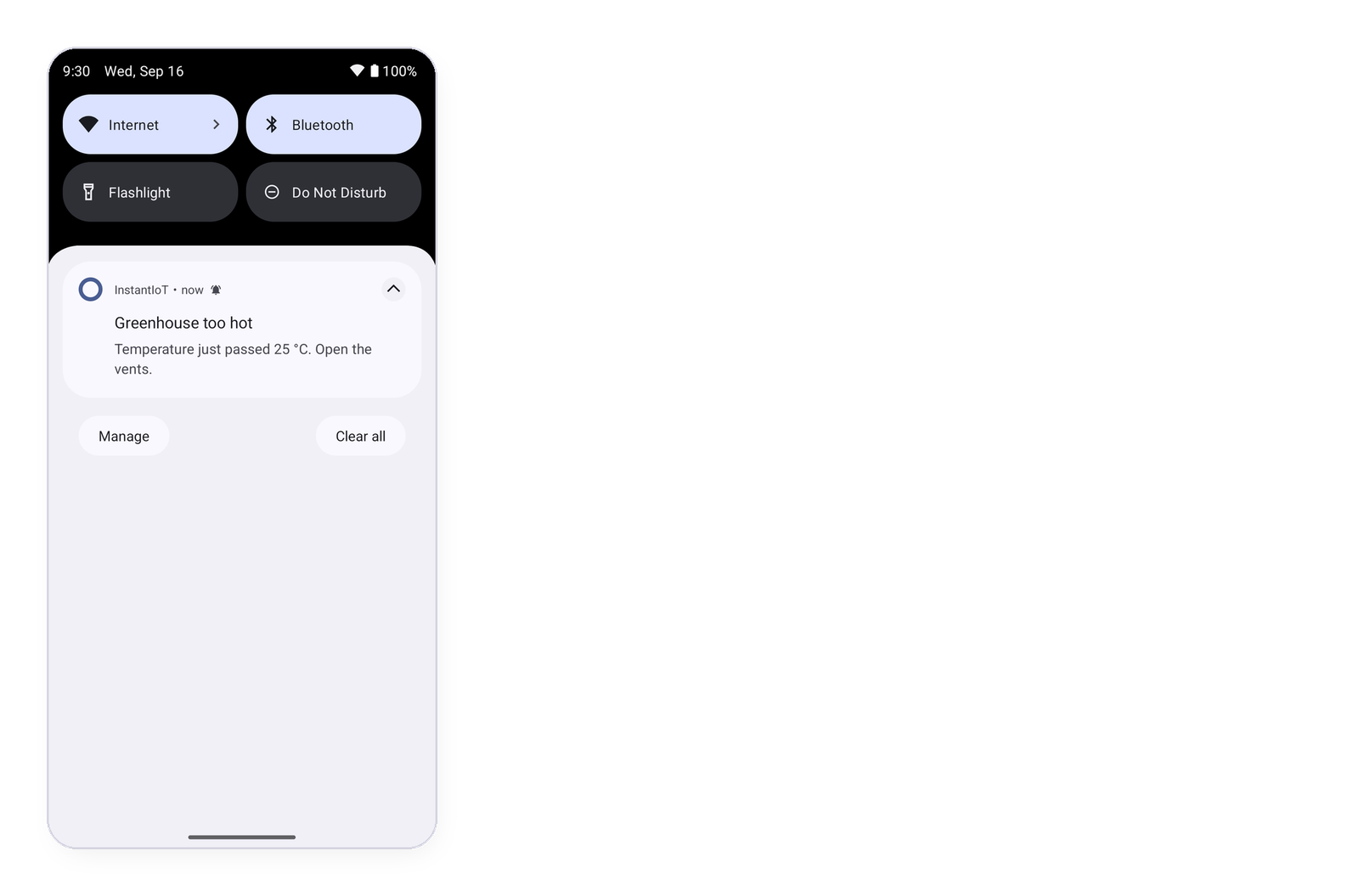
The rule’s title and message, exactly as you wrote them in its Send a notification action, with {{value}} replaced by the reading that fired it — Temperature just passed 31.2 °C. Tapping the push opens the app on the Notifications screen. A push goes to every phone signed in to your account; sign out on a phone and it stops receiving them.
E-mail, the other channel
A rule can send an e-mail instead of, or as well as, a push — the same title and message, to your account’s address — with the Send an e-mail action. E-mail is part of the Maker plan: 30 a month.
When it does not come
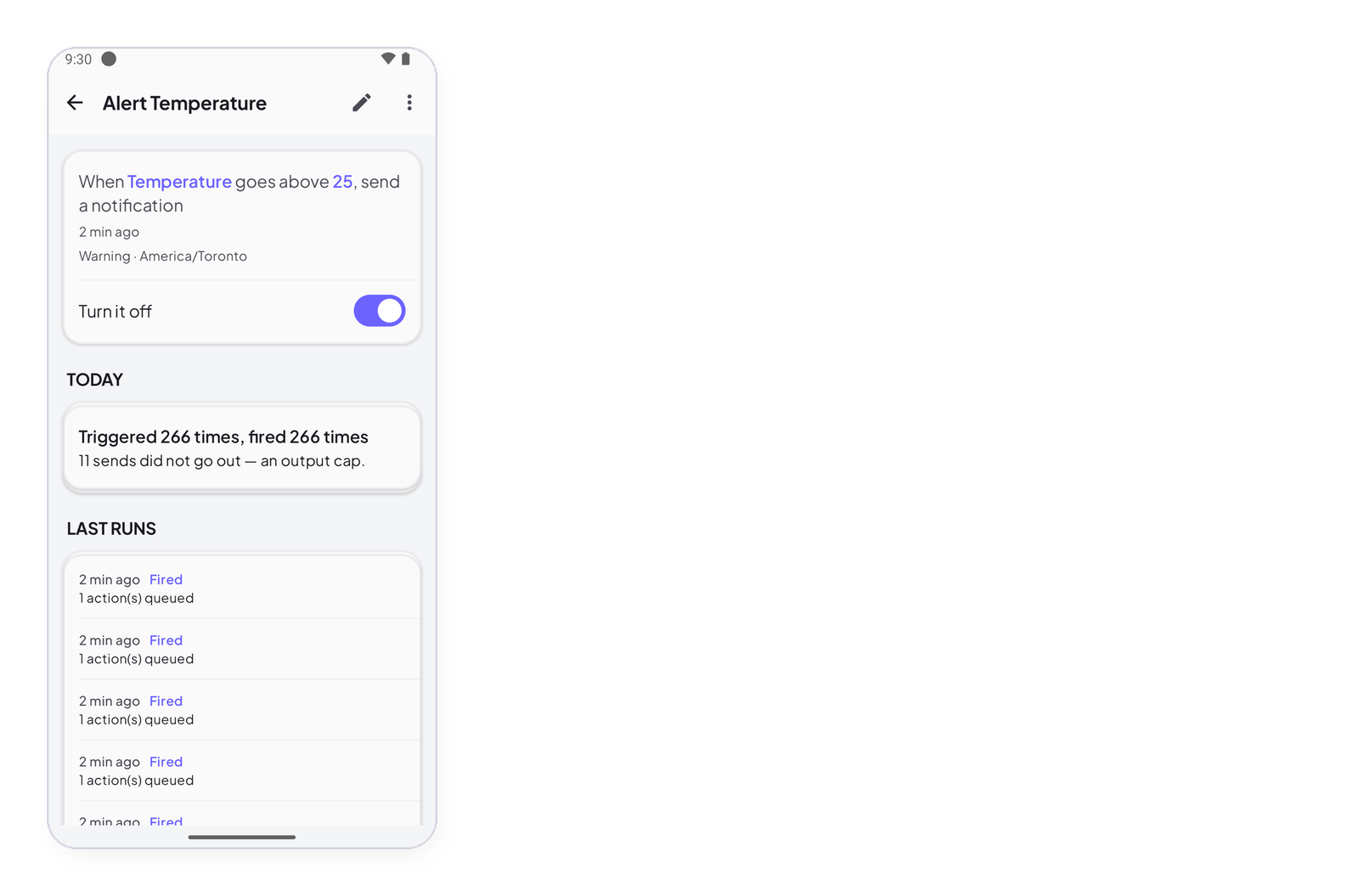
- Did the rule fire? Open it in the Automations tab: fired 0 times today means the rule, not the delivery.
- Is there a line on the Notifications screen? Yes: the Cloud sent it and the phone did not show it — check the phone’s notification settings for InstantIoT, and battery savers that silence apps.
- Marked refused? You reached your plan’s daily ceiling — Alerts: importance, and refused alerts.
- A new phone, or a reinstall? Open the app once, signed in.