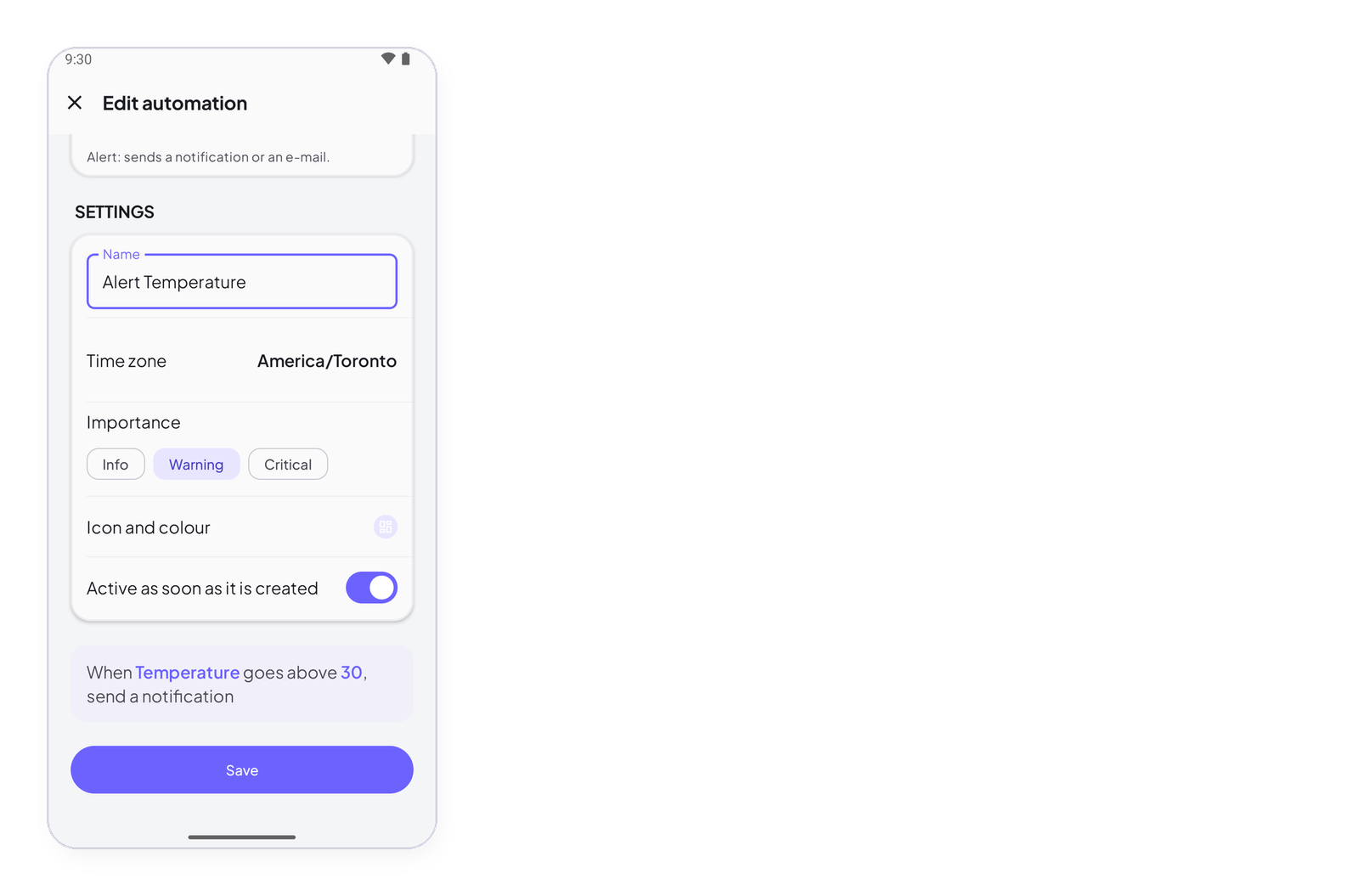
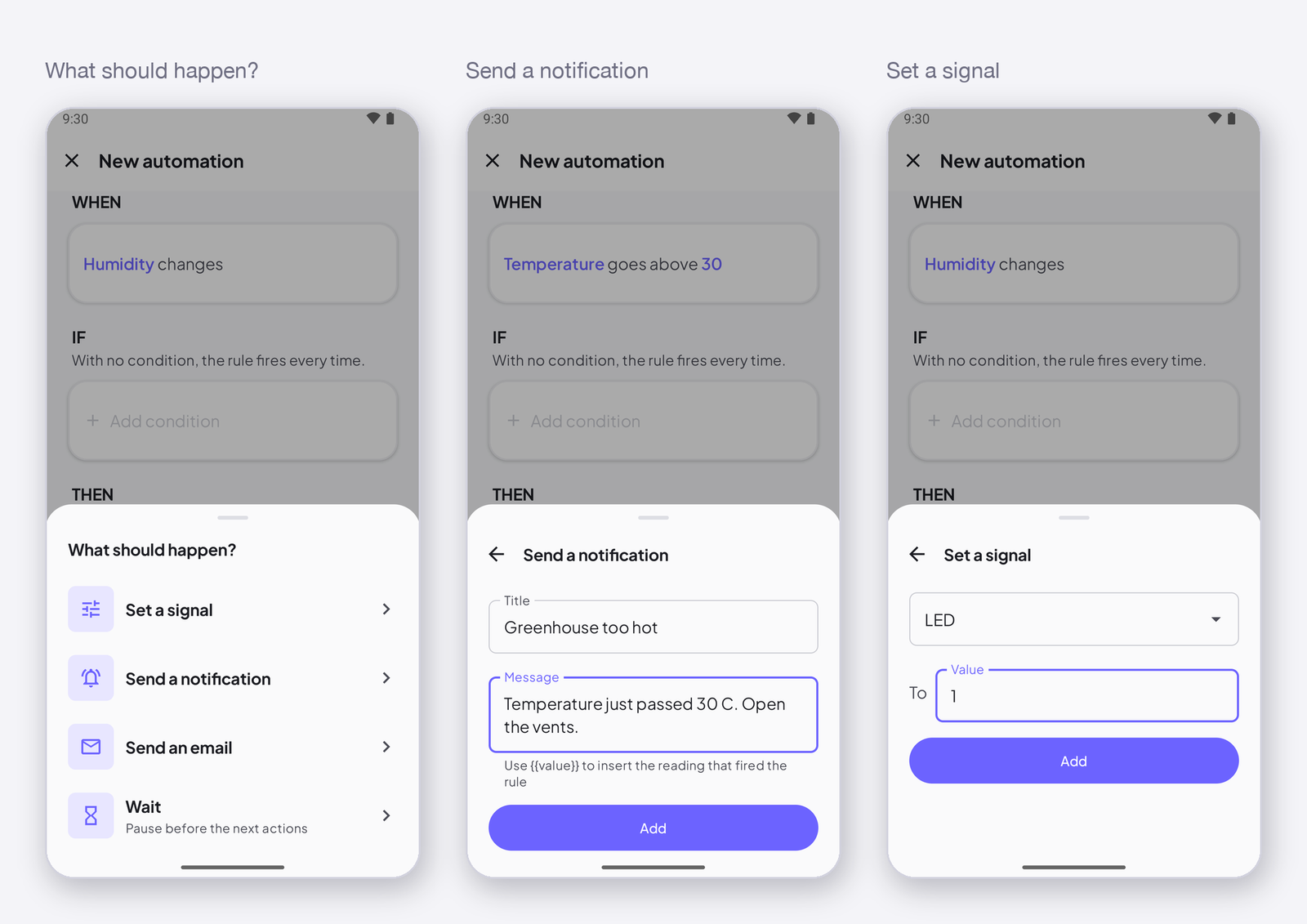
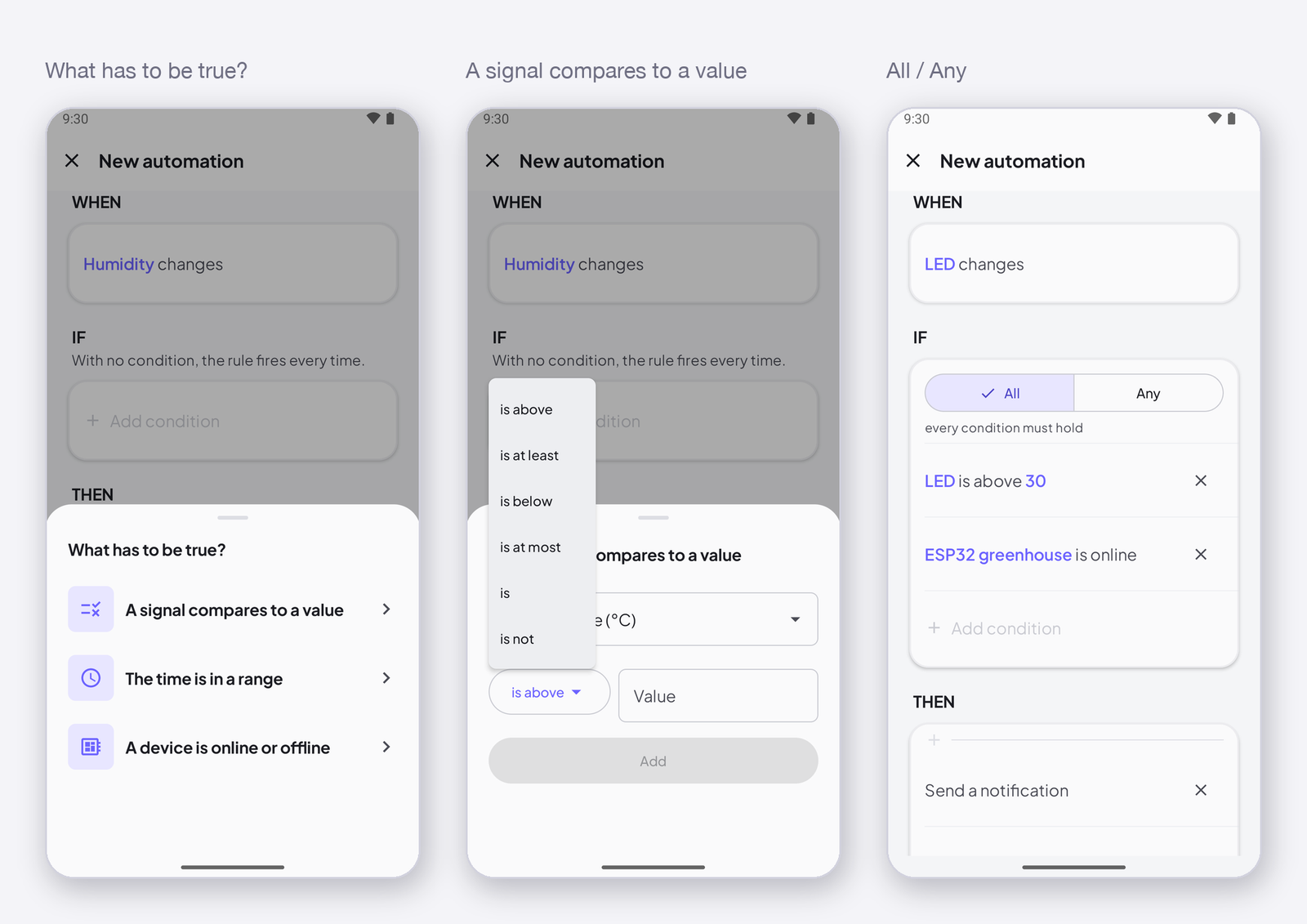
The Automations tab lists every rule of your account with its sentence, its importance and a switch. This page shows how to pause a rule without deleting it, how to open it to see what it did, how to edit or delete it, and what triggered and fired mean on a rule’s page.
The list
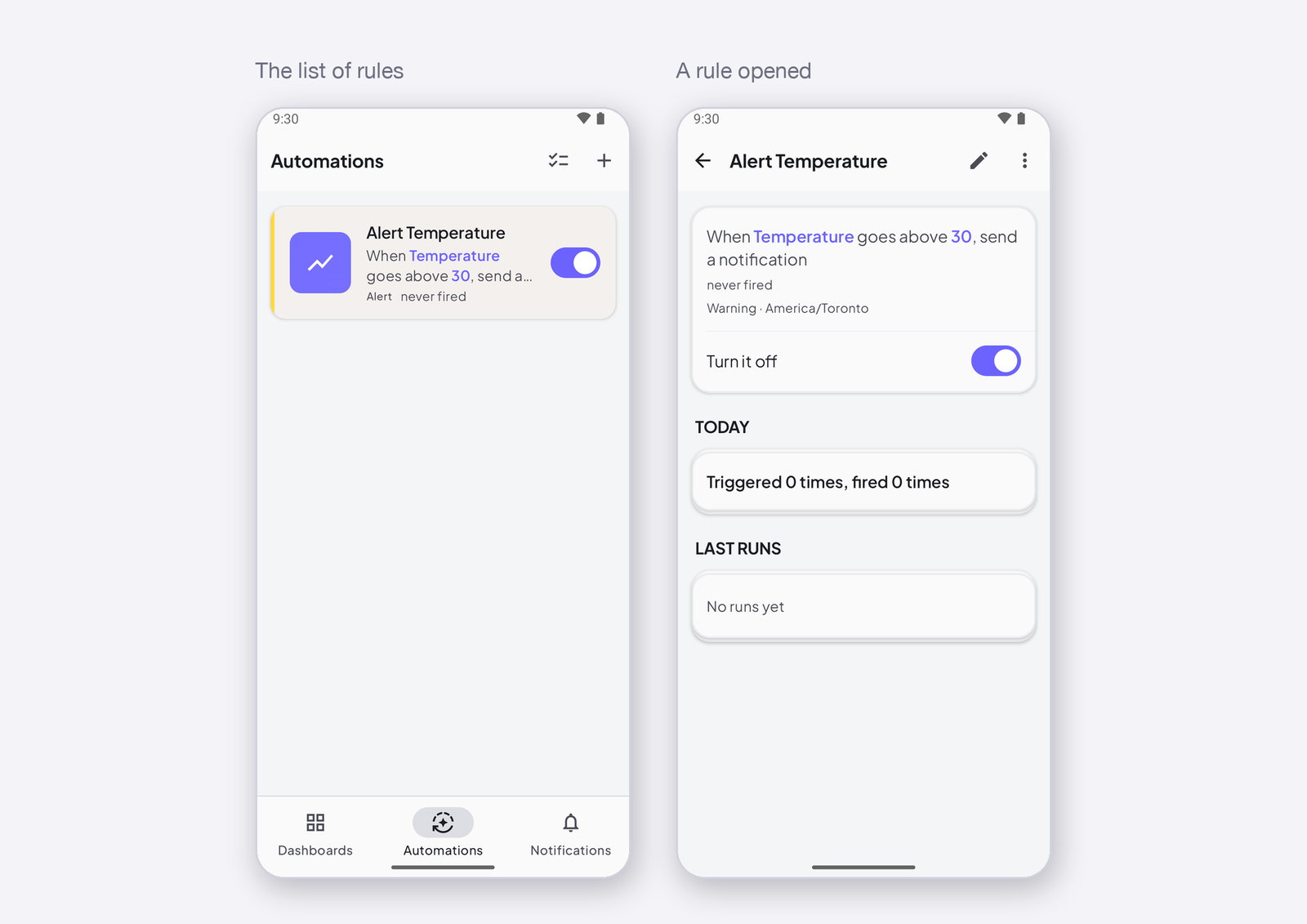
One card per rule: its icon, its name, its sentence, its importance (Alert or Automation), when it last fired — never fired, or a time — and a switch. The switch pauses the rule without deleting it: off, the rule keeps everything and does nothing. + creates a rule; the select icon lets you delete several at once.
A rule’s page
Tap a rule. Its page shows the sentence, the importance and the time zone, a Turn it off button, and two counters for today: triggered — how many times the trigger fired — and fired — how many times the conditions held and the actions ran. Last runs lists the latest ones with what happened: fired, condition false, action refused (a plan ceiling), action dropped (the device was offline).
Triggered 40 times, fired 0 means the trigger works and a condition blocks — usually the device is online on a device that is not.
Edit and delete
Edit automation on the rule’s page opens the editor with the rule filled in; change what you want and Save. More (⋯) deletes it. A deleted rule takes its history with it; its notifications stay on the Notifications screen.
Next
→ What your plan allows for automations. → The Notifications screen.