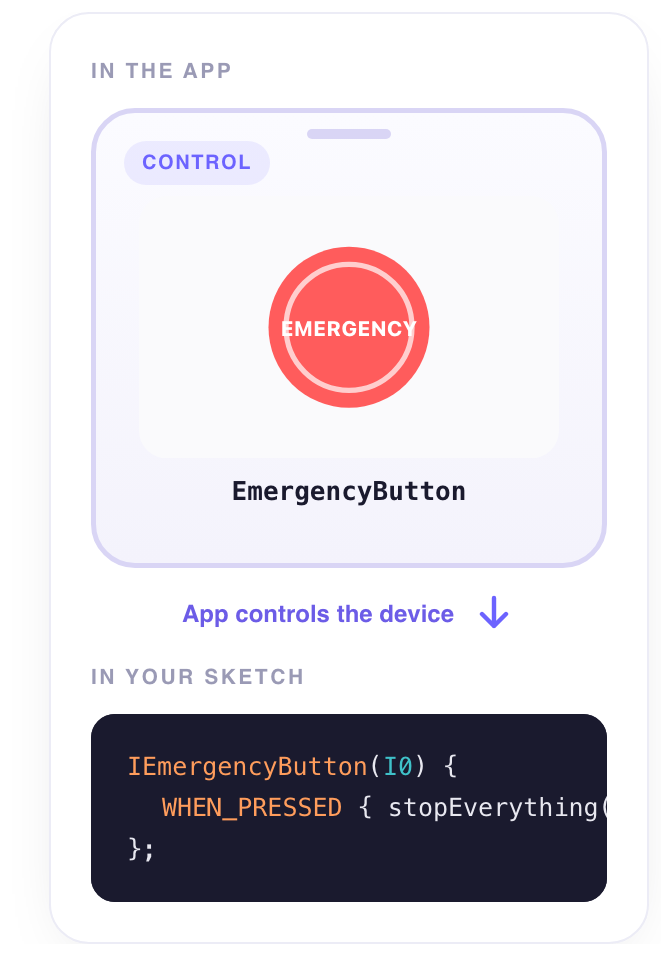
A big red button that means stop. Hold it and it triggers — pulsing — and stays triggered until it is reset. It is designed to be impossible to miss and hard to press by accident.
What it does
Triggering writes the Trigger value (1) and the button stays in its triggered state. Resetting writes the Reset value (0) and it goes back to idle. You choose whether a single tap or a hold triggers it, and whether it rearms by itself (goes back to idle after a moment) or waits for a second tap. The device sees both transitions with WHEN_TRIGGERED and WHEN_RESET.
When to use it
- Stop everything — cut a motor, close a valve, park an arm.
- Arm / disarm — an alarm, a sprinkler, a heater.
- A state you must see — the pulsing red says triggered from across the room.
Set it up
- Place it — In edit mode, tap + and choose Emergency Button under Controllers. Make it big, and put it on the first page: its whole point is to be found without looking.
- Wire it to a signal — Tap the button, open the Data tab, tap + Add a target and pick an Integer signal on your device.
- Decide how it triggers — In the same tab, under To trigger, keep Hold down — a deliberate press — or choose One tap. Leave Rearms by itself on if the button should go back to idle on its own.
- Try it — Close the settings, tap ▶, and hold the button: the device receives
1.
Settings
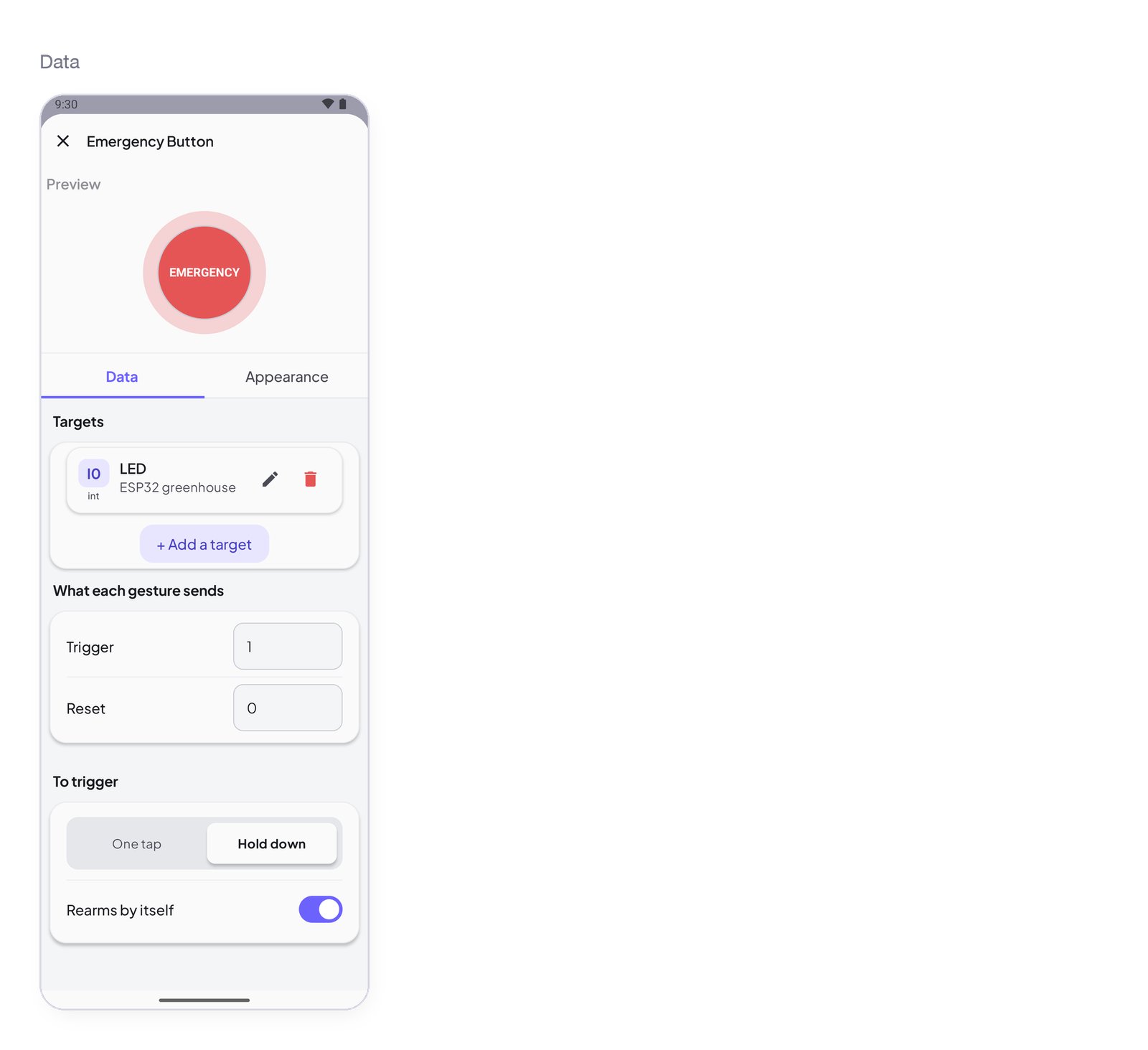
Tap the widget in edit mode: the sheet opens with a live preview at the top, then two tabs — Data for what it reads or writes, Appearance for how it looks.
Data — what it writes
Targets
| Setting | Type | Default | What it controls |
|---|---|---|---|
| Targets | list of signals | empty — No target yet. The tap goes nowhere. | The signal the widget writes to. Accepts an Integer or Decimal signal — Integer in practice: 1 and 0. The picker lists nothing else. + Add a target for a second device: every target gets the value. |
What each gesture sends
| Setting | Type | Default | What it controls |
|---|---|---|---|
| Trigger | number | 1 |
The value written when the button triggers. |
| Reset | number | 0 |
The value written when it resets. |
To trigger
| Setting | Type | Default | What it controls |
|---|---|---|---|
| To trigger | One tap / Hold down | Hold down | Hold down asks for a deliberate press — the safe default. One tap triggers immediately. |
| Rearms by itself | toggle | on | On: the button goes back to idle by itself after triggering (it sends Reset). Off: it stays triggered until someone taps it again. |
Appearance — how it looks
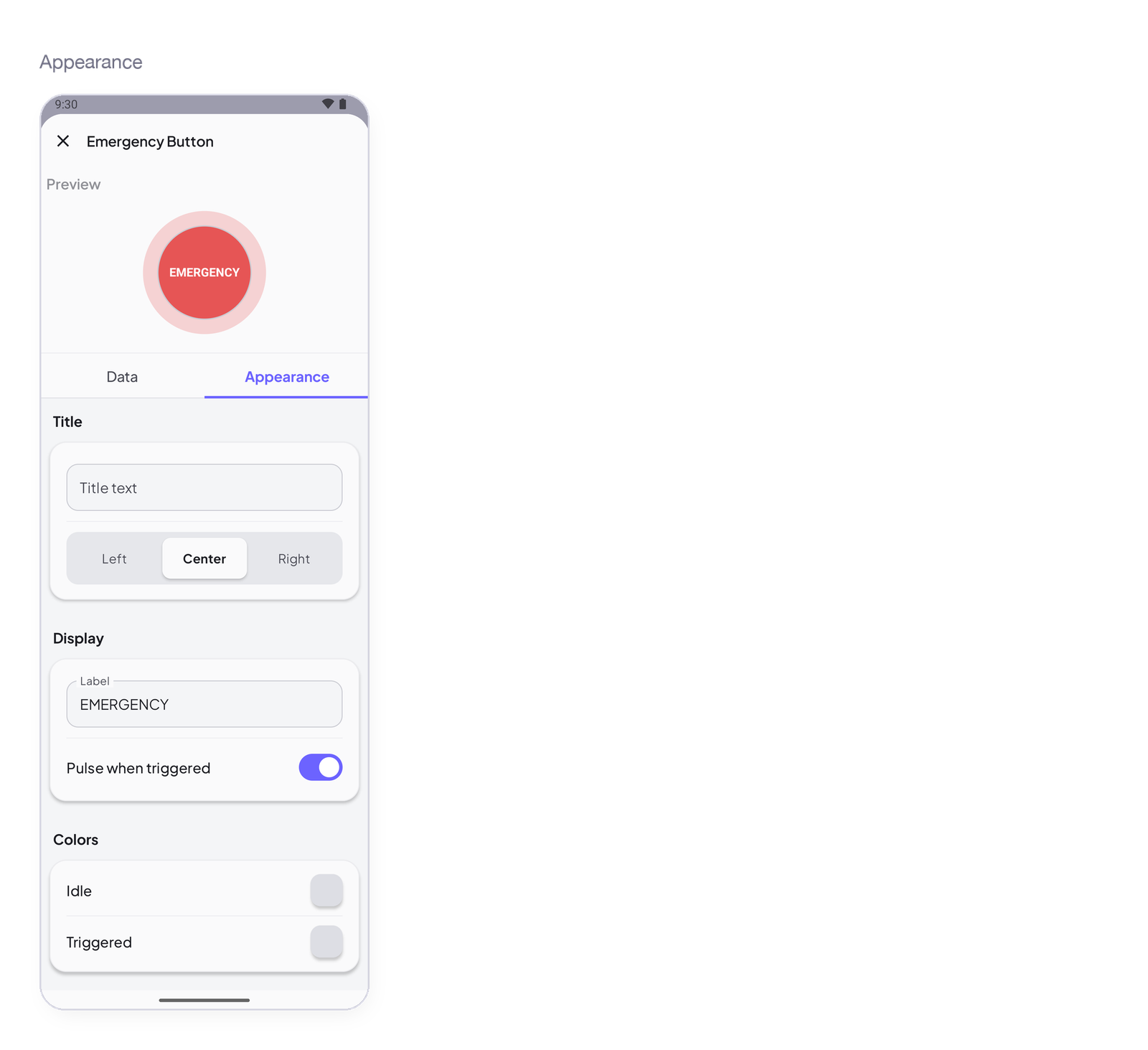
Title
| Setting | Type | Default | What it controls |
|---|---|---|---|
| Title text | text | empty | A title above the widget. Empty means no title. |
| Alignment | Left / Center / Right | Center | Where the title sits. |
Display
| Setting | Type | Default | What it controls |
|---|---|---|---|
| Label | text | EMERGENCY | The text on the button. |
| Pulse when triggered | toggle | on | The halo that breathes while the button is triggered. |
Colors
| Setting | Type | Default | What it controls |
|---|---|---|---|
| Idle | colour | red | The button at rest. |
| Triggered | colour | darker red | The button while triggered. |
States
- Idle — red, still. Triggered — pulsing until reset.
- Hold down — the button fills while you hold it; release early and nothing is sent.
- Device offline — the trigger goes to the Cloud; use
ISignaland Restore so a device that reboots comes back stopped.
Arduino device code
The address is all the device knows — I0 here; use the one the app gave your signal. In the sketch, two clauses, two transitions:
IEmergencyButton(I0) {
    WHEN_TRIGGERED { … }
    WHEN_RESET     { … }
};
Complete sketch — Cloud
Paste it into the Arduino IDE, put your Wi-Fi and the token the app gave you, upload.
#include <InstantIoT.h>

const char* WIFI_SSID    = "MyWiFi";
const char* WIFI_PASS    = "MyPassword";
const char* DEVICE_TOKEN = "PASTE_TOKEN_HERE";

const int MOTOR = 5;

IEmergencyButton(I0) {
    WHEN_TRIGGERED { digitalWrite(MOTOR, LOW);  Serial.println("STOP");  }
    WHEN_RESET     { digitalWrite(MOTOR, HIGH); Serial.println("reset"); }
};

void setup() {
    Serial.begin(115200);
    pinMode(MOTOR, OUTPUT);
    InstantIoT.begin(WiFiLink(WIFI_SSID, WIFI_PASS), Cloud(DEVICE_TOKEN));
}

void loop() {
    InstantIoT.loop();
}
Other connections
The widget block never changes. Only the begin() line says how the device reaches the app:
| Connection | begin() |
Devices |
|---|---|---|
| Cloud over Wi-Fi (above) | InstantIoT.begin(WiFiLink("MyWiFi", "secret"), Cloud(DEVICE_TOKEN)); |
ESP32 family, ESP8266, UNO R4 WiFi, MKR WiFi 1010, Nano 33 IoT, UNO WiFi Rev2 |
| Cloud over Ethernet | InstantIoT.begin(EthernetLink(), Cloud(DEVICE_TOKEN)); |
any board + an Ethernet shield |
| Direct — the device’s own Wi-Fi | InstantIoT.begin(AccessPoint("MyESP32", "12345678")); |
every board with Wi-Fi |
| Direct — Bluetooth LE | InstantIoT.begin(BLELink("MyESP32")); — #include <NimBLEDevice.h> first |
ESP32 family (not the S2) |
| Direct — Bluetooth Classic | InstantIoT.begin(BluetoothLink("MyESP32")); |
the original ESP32, Android only |
| Direct — a Bluetooth module (HC-05, HM-10) | InstantIoT.begin(SerialLink(Serial1)); — or SerialLink(13, 15) on ESP8266, SerialLink(10, 11) on UNO / Nano |
every board, radio or not |
| Your own InstantIoT Server (open source, at home) | InstantIoT.begin(WiFiLink("MyWiFi", "secret"), MyServer("192.168.1.42", DEVICE_TOKEN)); |
same as Cloud |
Direct needs no token: the phone is at the other end of the wire. See Connect for TLS, timeouts and what to do when it does not connect.
ISignaldoes the same job — and survives a restart.ISignal(I0, int v)runs with exactly the same value asIEmergencyButton(I0): the widget block is the readable form,ISignalthe generic one, and you can use either. The difference shows when the device reconnects: with Restore after a restart on the signal, the Cloud sends the last value again and only theISignalblock runs — an emergency stop is a state you want back after a restart. Read it withISignal(I0, int v), turn Restore after a restart on, and a device that reboots while the stop is armed comes back stopped. See One block for everything.
Notes
- Put the safety in the sketch too: the device should stop by itself if the connection drops (a watchdog on
InstantIoT.loop()). - One emergency button per dashboard, big, on the first page. Its whole value is being found without looking.
Next
→ Switch — a plain on / off → Simple Button — a gesture without the drama