A dashboard is a grid, and every widget on it is a control you tap or a display you read. This page shows how to place a widget, move and resize it, open its settings, and the one distinction that trips everybody once — edit mode and Run mode — then how a dashboard grows past one screen with pages.
Place a widget
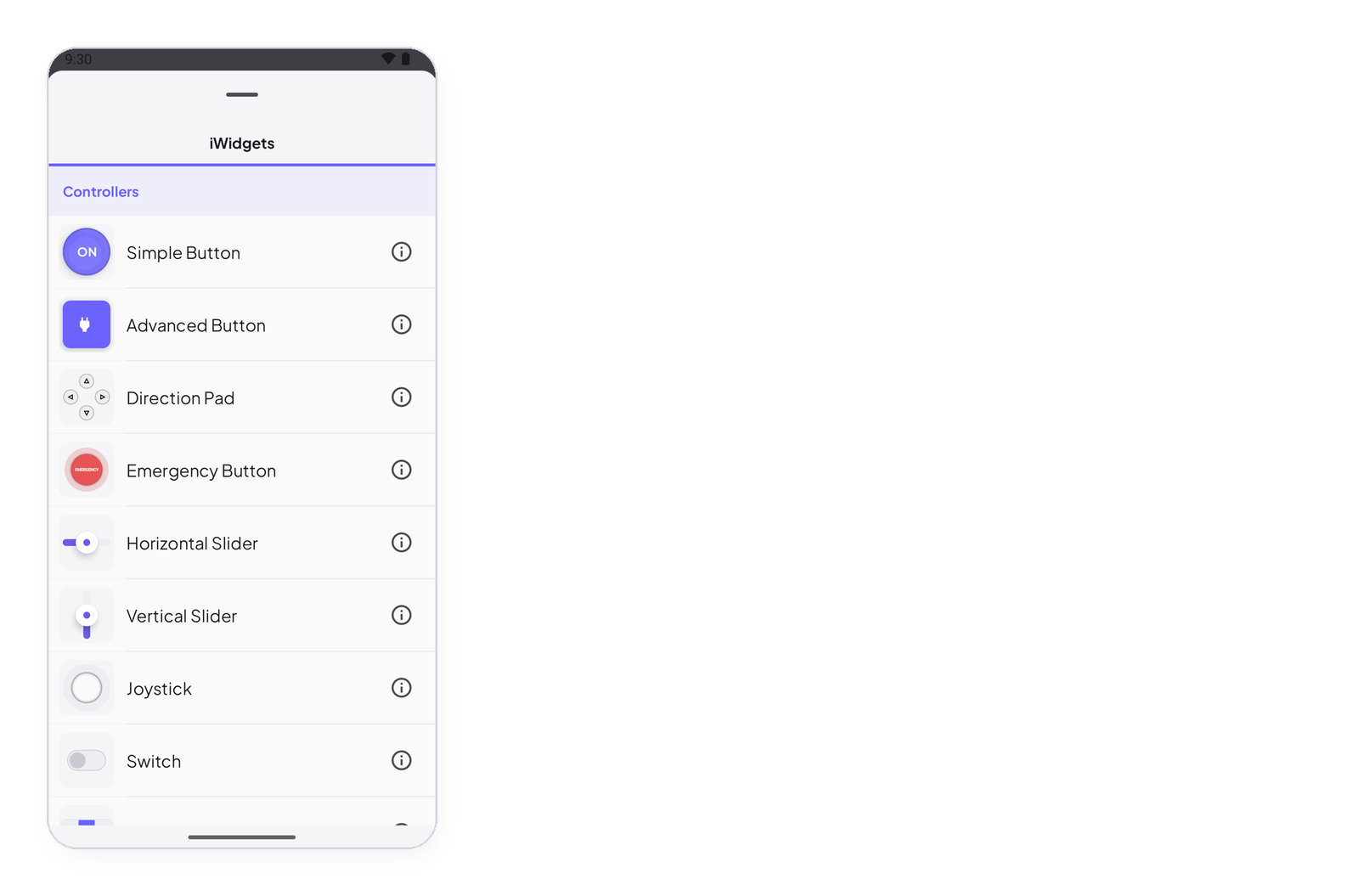
In edit mode, tap + at the bottom of the dashboard. The list has two families: Controllers — buttons, sliders, a joystick, switches — which write to a device, and Displays — metric, text, LED, gauge, charts, levels — which show what a device writes. Tap one: it lands on the grid. Drag it where you want it; pull its corner to resize it. The grid is twelve columns wide.
Edit mode and Run mode
The dashboard opens in edit mode: a toolbar at the bottom, and a tap on a widget opens its settings. Tap ▶ at the top right to switch to Run mode: the toolbar goes away, and a tap on a widget commands — a switch flips, a button presses. This is the mode you use; edit mode is the mode you build in. Tap Edit to come back.
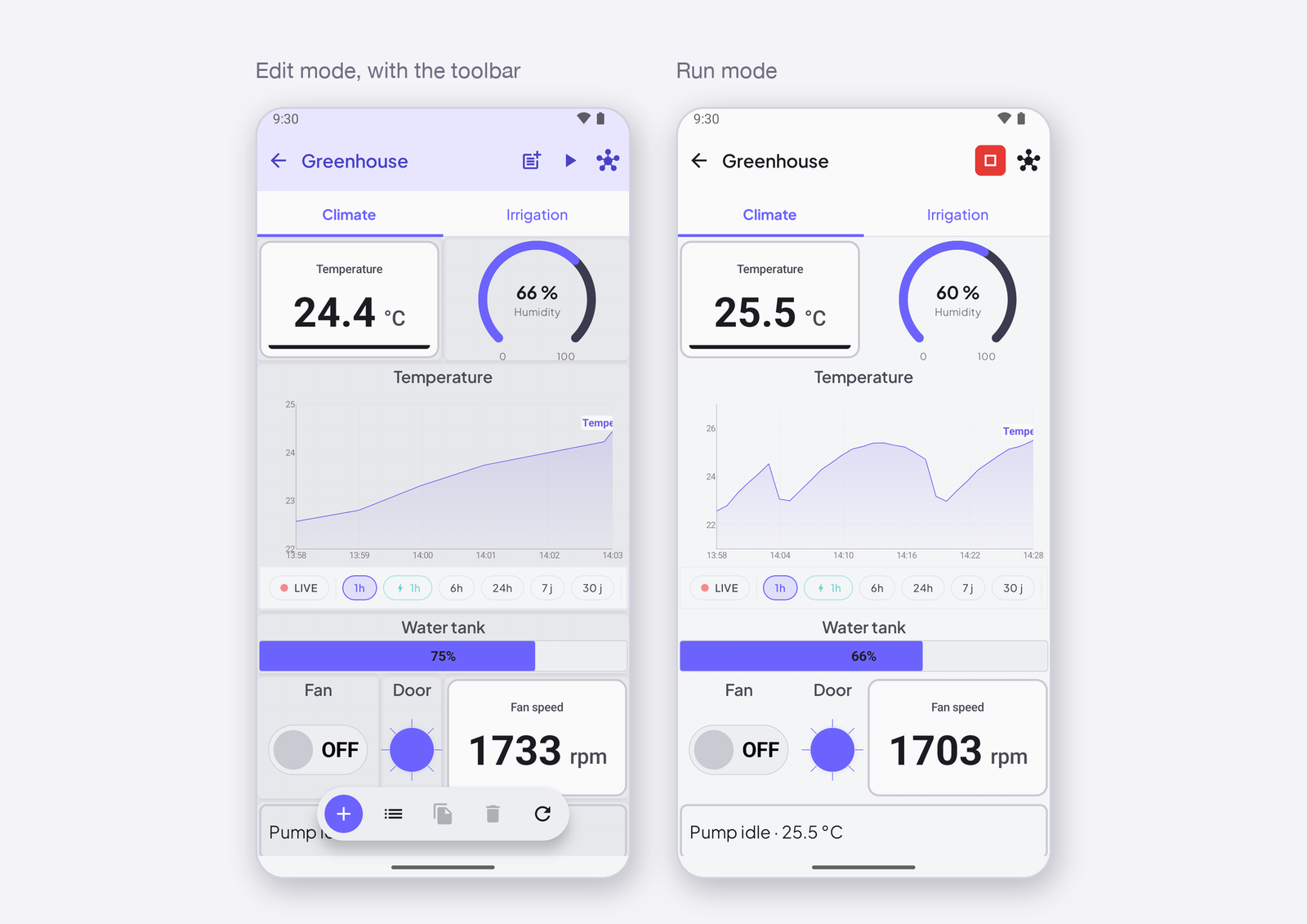
The toolbar, left to right: + adds a widget; the list icon selects several widgets at once; duplicate and delete act on the selection; refresh reloads the dashboard.
Configure a widget
In edit mode, tap a widget: its settings open as a sheet, with a live preview at the top and two tabs. Data is what it reads or writes — the signal, and for a control what each gesture sends. Appearance is how it looks — title, display options, colours. Every widget has its own page in this documentation with every setting explained: Controllers, Displays.
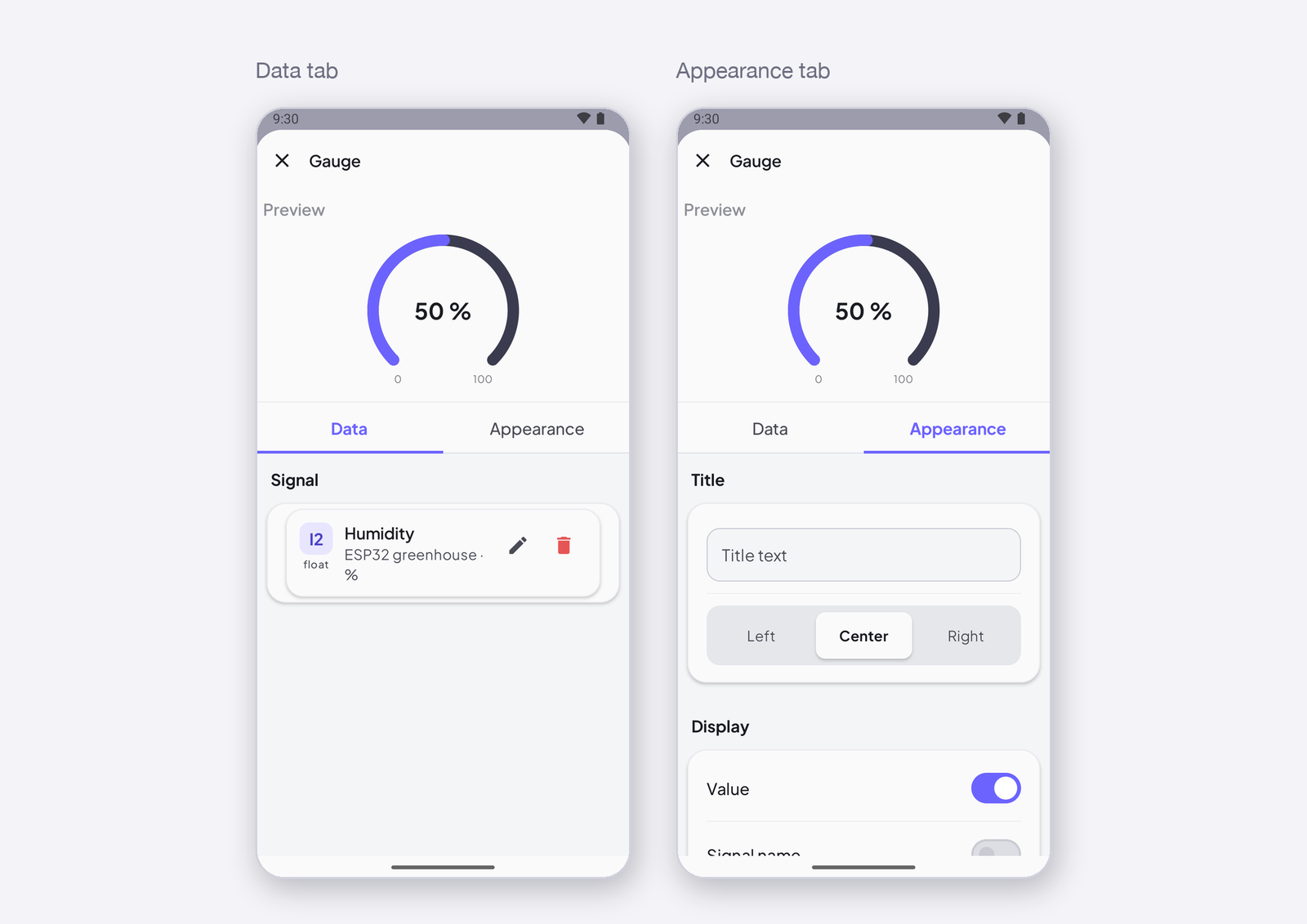
One signal can feed many widgets: a gauge and a chart can both read I1. A display reads one signal; a control can write to several devices at once.
Pages
A dashboard is not one screen: it is as many pages as you need, and each page is a full grid. Pages are how a project grows without shrinking its widgets — the controls of the greenhouse on the first page, its curves on the second, the second device on the third — and how a phone screen stays readable. Every widget lives on one page; a signal can have widgets on several.
Add a page. Tap Add page at the top right of the dashboard, give it a name — Curves, Pump room — and tap Create. Tabs appear above the grid; the new page opens, empty. Swipe between pages, or tap a tab.
Rename or delete a page. Long-press its tab: Rename opens the name; Delete removes the page and every widget on it — the signals and the devices are untouched. There is no confirmation, so keep the widgets you want by moving them to another page first. A dashboard with a single page has no tabs.
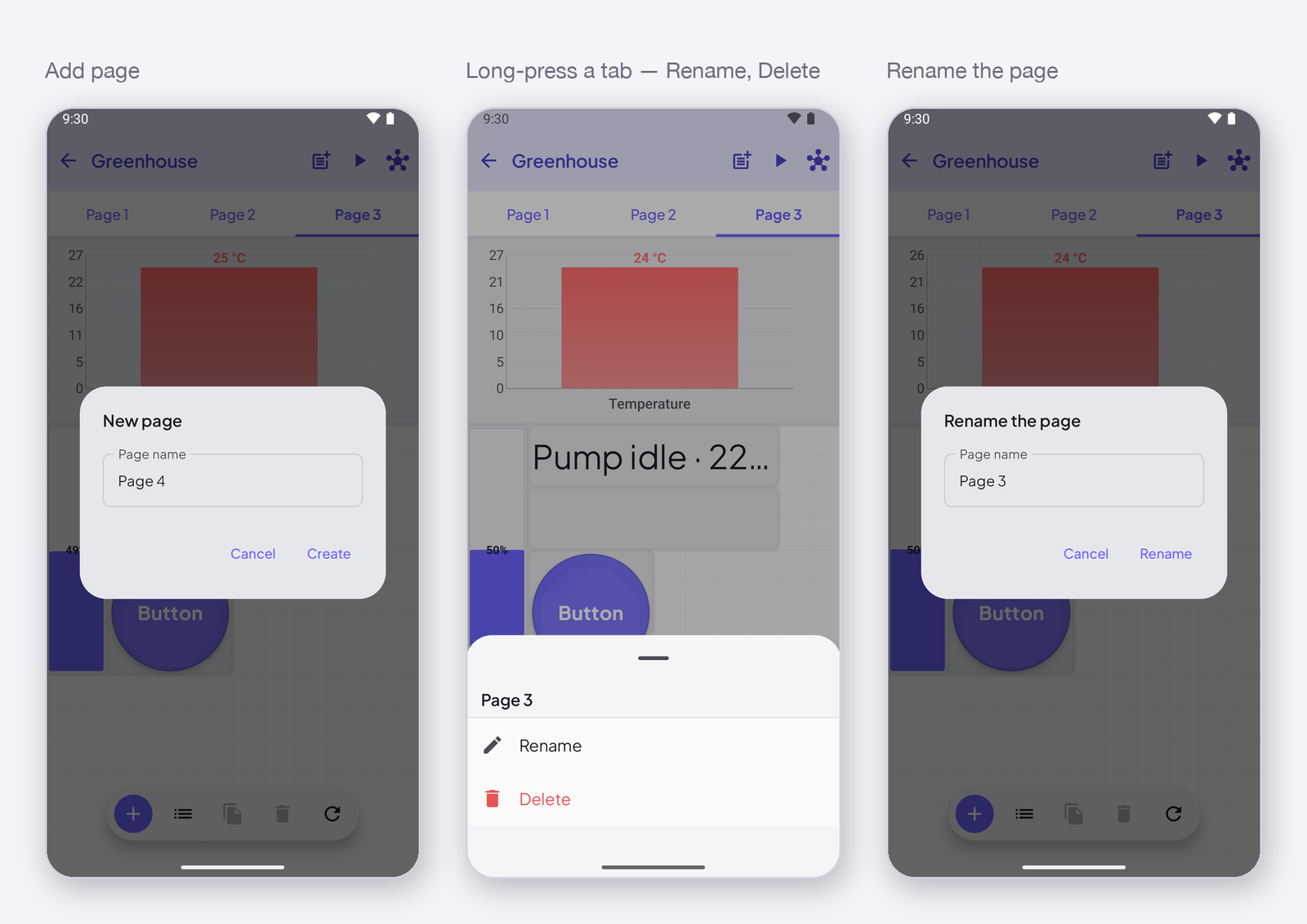
Run mode keeps the tabs: the whole dashboard, every page, is live — a rule or a device writing to a signal moves the widgets on every page at once, not only the one you are looking at. The sketch the app writes (Copy template) carries the widgets of all pages, too.
Where next
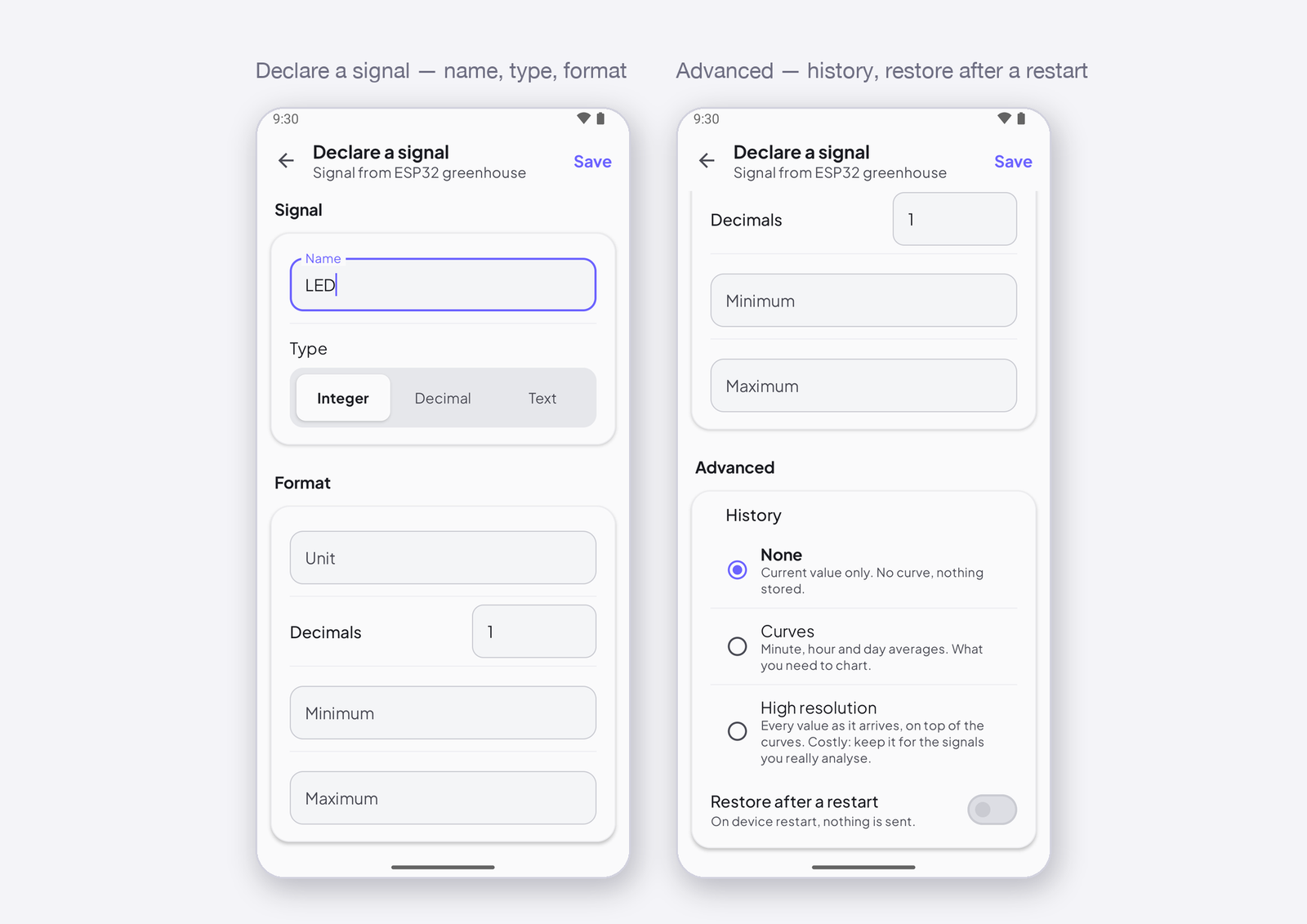
- Register a device and declare its signals — what the widgets are wired to.
- Signals: types, format and history.