The Notifications tab is the record of what your rules did — every alert your phone received, and the ones that were refused — one line each, newest first. This page reads the screen: the four tabs, what a line shows, and where to go from it.
One event, two places
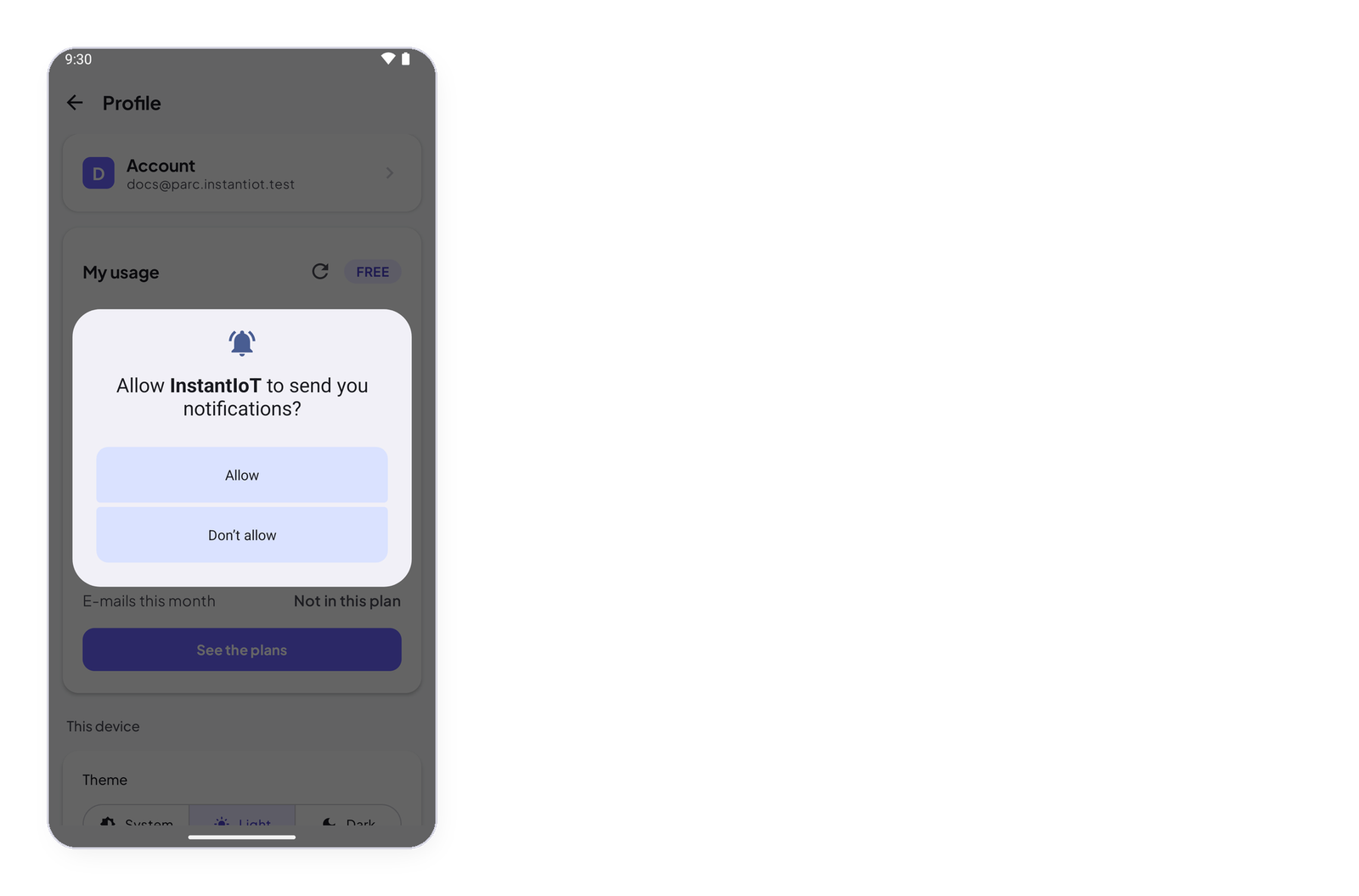
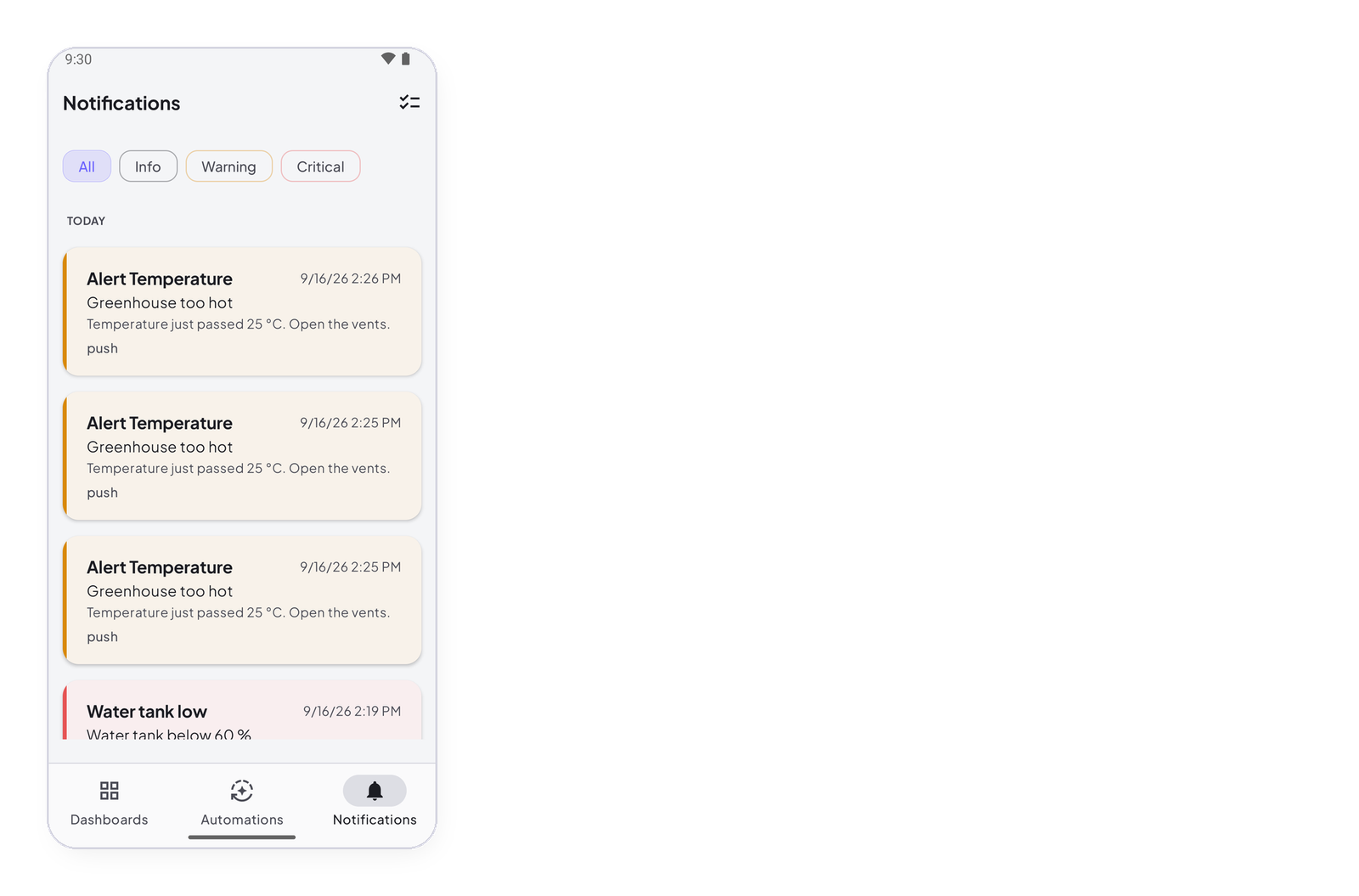
When a rule sends a notification, your phone shows it in its own notification shade, like any app — that is the push notification, Push notifications on your phone. And the app keeps a line on this screen, whether or not you saw it, whether or not the app was open. The push is the moment; this screen is the memory.
The four tabs
All, Info, Warning, Critical — the importance you gave each rule in its settings. A rule marked Critical lands in Critical, so that tab shows at once what needed attention. Alerts: importance, and refused alerts.
A line
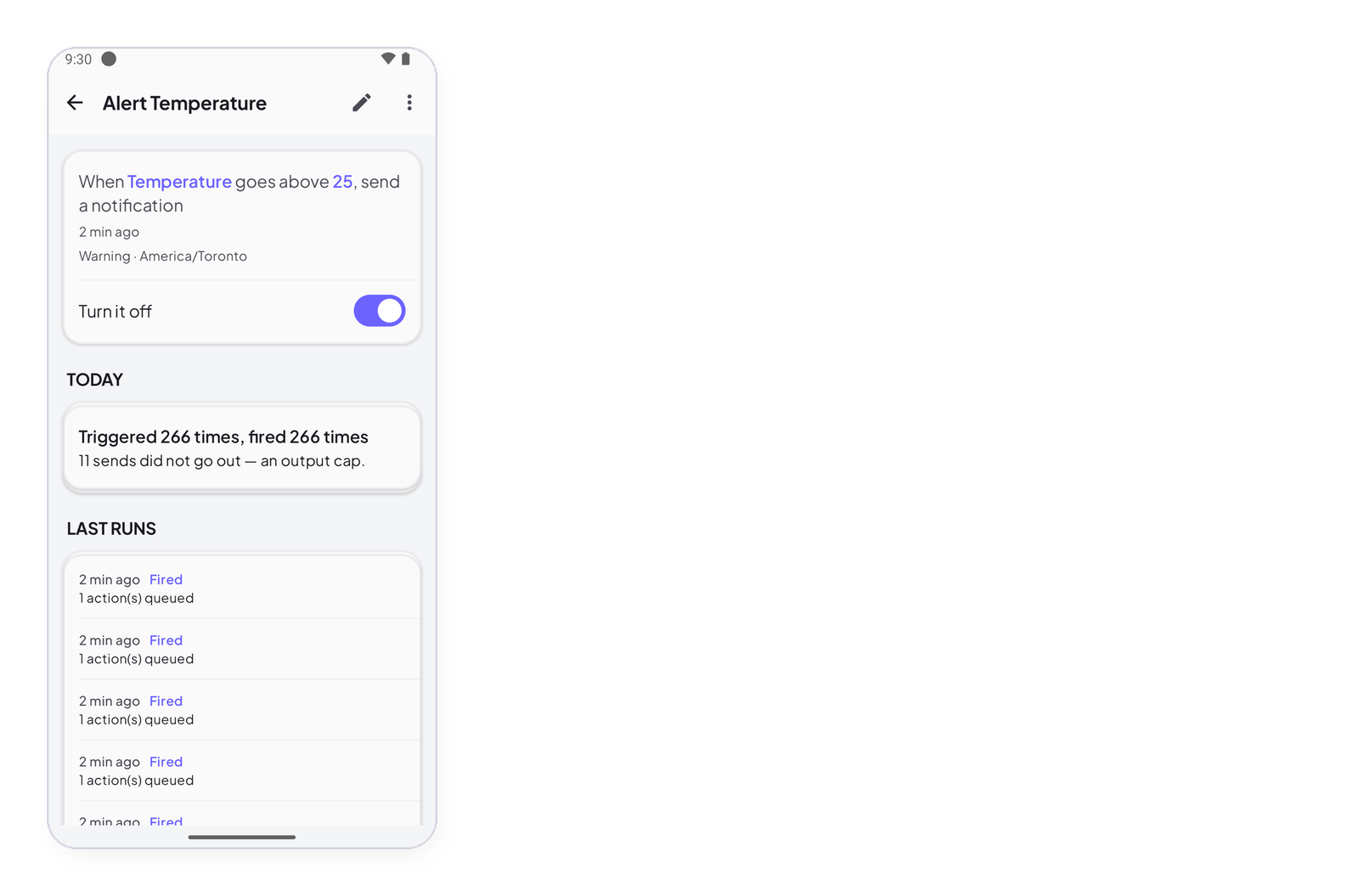
The rule’s name, its message with the value that fired it, and when. Tap it to open the rule — its sentence, its switch, its last runs — and turn it off or change the threshold if it fires too often (Manage your automations). A line marked refused is a rule that fired past your plan’s ceiling: the rule ran, the delivery did not.
Select at the top lets you delete lines; deleting a line does not touch the rule.
Empty — No notifications, what your automations do will show up here — means no rule has fired yet, or none sends notifications: a rule that only sets a signal leaves no line here.